KCL CANVAS · HOW-TO GUIDE
How to use KCL Canvas
Everything you need to set up a screen: adding your photos, choosing the widgets and layout, running several screens and sharing with the people you live or work with.
In this guide
Thirteen short sections – jump straight to the one you need.
SECTION 01
Getting started
Open KCL Canvas
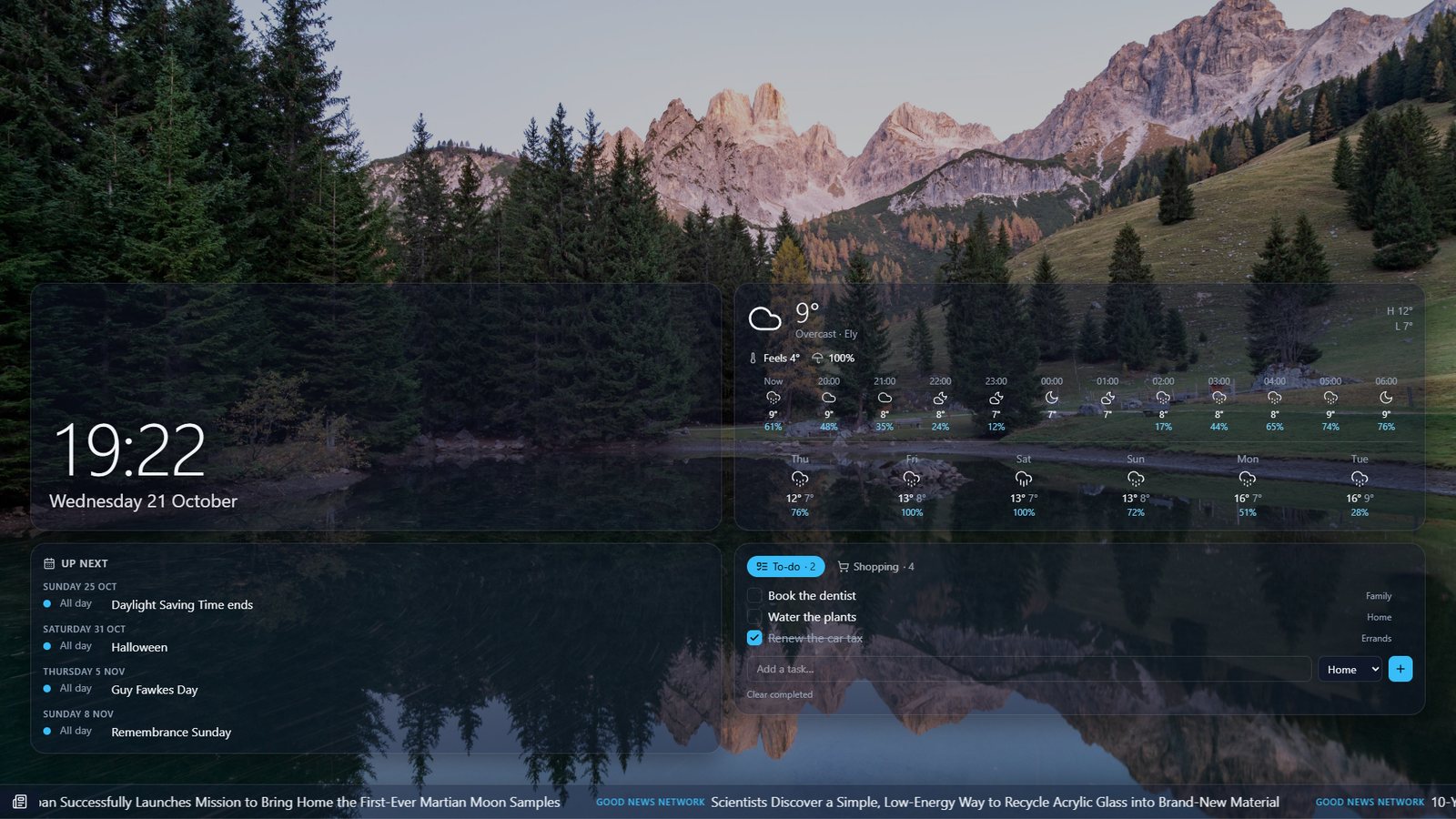
KCL Canvas runs in a web browser, so there’s nothing to download. On a TV, tablet or computer, open the browser and go to canvas.kcl.cloud. It starts straight away with a demo video, the clock, the weather and good news.
Open the settings
- On a TV: press OK (the middle button) on the remote.
- With a keyboard: press S.
- With a mouse or touch: move the mouse or tap the screen, then choose the cog in the corner.
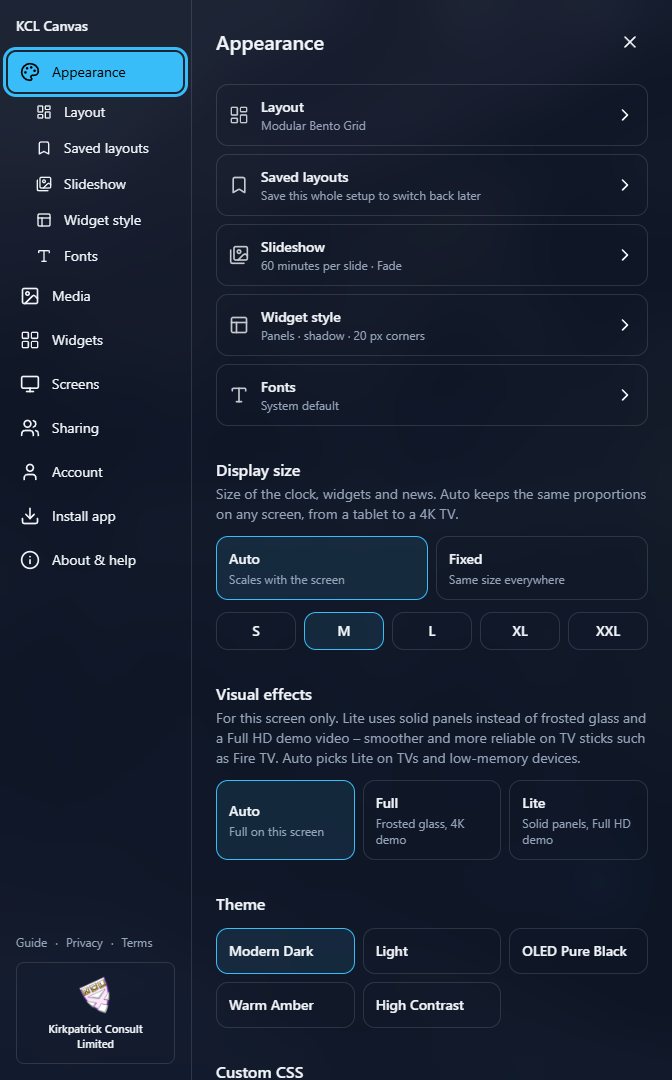
The menu on the left has four main parts:
- Appearance – the layout, the slideshow, colours, fonts and saved layouts.
- Media – where your photos and videos come from.
- Widgets – the clock, weather, calendar, lists, news and the rest.
- Account – signing in and the licence.
Below them are Screens and Sharing (once you’re signed in), Install app and About & help. Changes show on the screen behind as you make them. Press Back, Esc or the × to close.
Tip: You can use KCL Canvas without an account. Sign in when you want your settings on more than one screen, or to use OneDrive, Outlook and Microsoft 365.
SECTION 02
Signing in
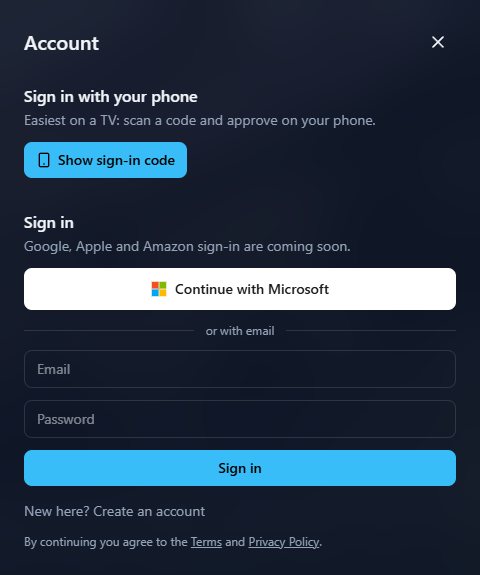
Create an account or sign in
Open Settings → Account. You can:
- Continue with Microsoft – use your Microsoft account (Outlook.com, Hotmail, or a work or school account). This also connects your OneDrive, Outlook calendars and To Do lists.
- Or create an account with your email and a password.
Whatever you set up before signing in comes with you into the new account.
Sign a TV in with your phone
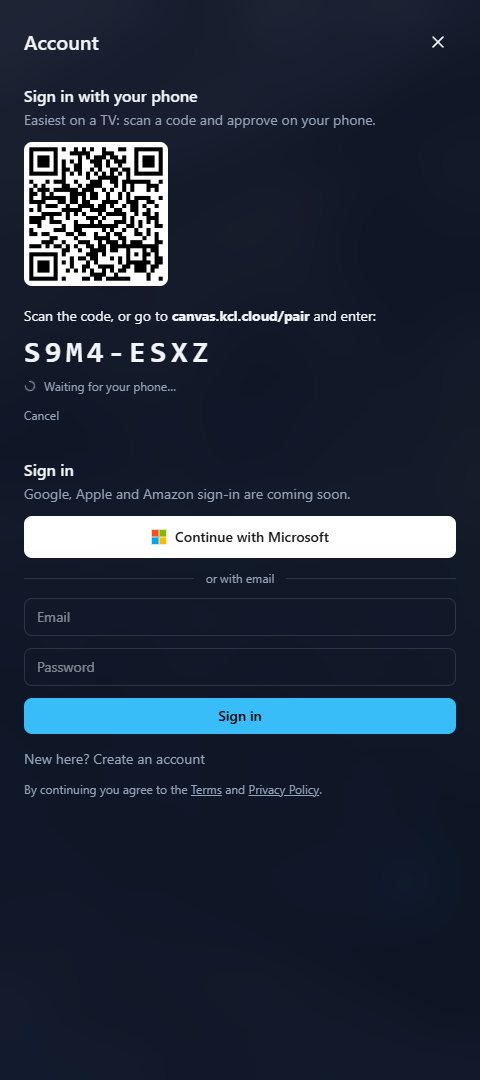
Typing on a TV is slow, so let your phone do it:
- On the TV, open Settings → Account and choose Show sign-in code.
- Scan the QR code with your phone’s camera (or go to canvas.kcl.cloud/pair and type the code).
- Sign in on your phone if asked, then choose Sign in my screen. The TV signs in by itself within a few seconds.
The code works once and for 10 minutes.
More than one Microsoft account
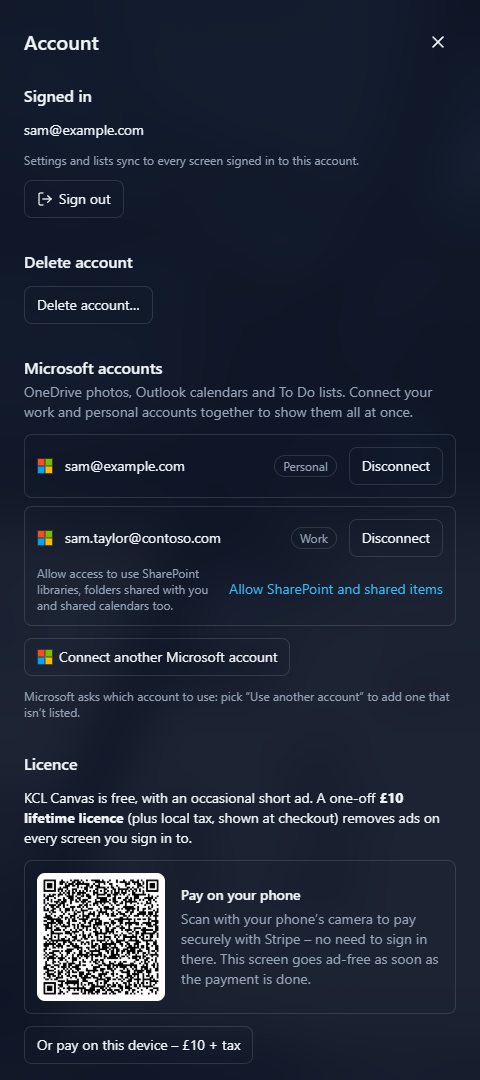
Connect a work and a personal account together: choose Connect another Microsoft account and pick the other account on Microsoft’s page. Calendars and To Do lists then come from both.
With a work or school account, choose Allow SharePoint and shared items to use SharePoint libraries, folders shared with you and shared calendars, and to show colleagues’ names and photos in Planner.
Each account has its own Disconnect button. Delete account removes your KCL Canvas account and everything stored with it.
SECTION 03
Install it as an app
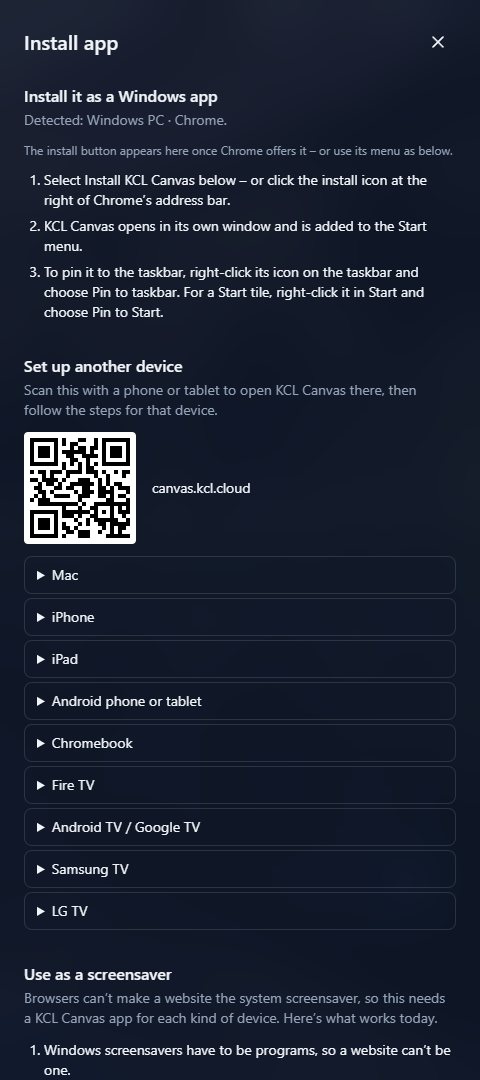
KCL Canvas can sit on your computer or phone like any other app, in its own window without the browser’s address bar. Open Settings → Install app: it recognises your device and shows the steps, for example:
- Windows (Edge or Chrome): choose Install KCL Canvas, then pin it to the taskbar or Start.
- Mac: in Safari choose File → Add to Dock.
- iPhone and iPad: in Safari choose Share → Add to Home Screen.
- Android: choose Install KCL Canvas, or Add to Home screen in the browser’s menu.
- TVs: open it in the TV’s browser and bookmark it, or use a signage app such as AbleSign.
A QR code on the same page opens KCL Canvas on another device. The page also explains what’s possible with screensavers today.
SECTION 04
Your photos and videos
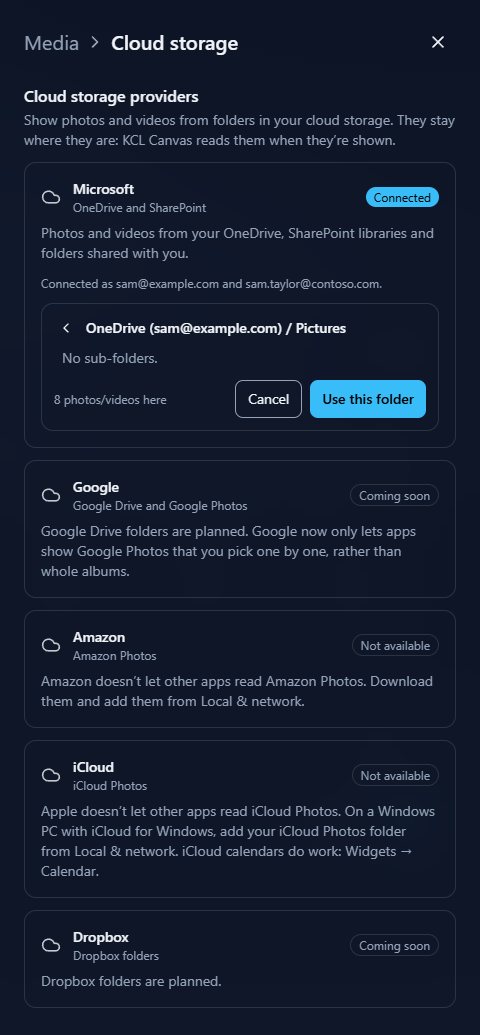
Open Settings → Media. You can mix photos from several places; KCL Canvas never copies your cloud photos to its own servers.
OneDrive and SharePoint
- Sign in with Microsoft (or connect a Microsoft account in Settings → Account).
- Open Media → Cloud storage and choose Choose a folder.
- Open the folder you want. It tells you how many photos and videos are in it.
- Choose Use this folder. Add as many folders as you like.
Sub-folders are included unless you switch that off for the folder. New photos you add to OneDrive appear on the screen by themselves.
Tip: With a work or school account, Allow SharePoint and shared items adds SharePoint libraries and Shared with me folders to the list.
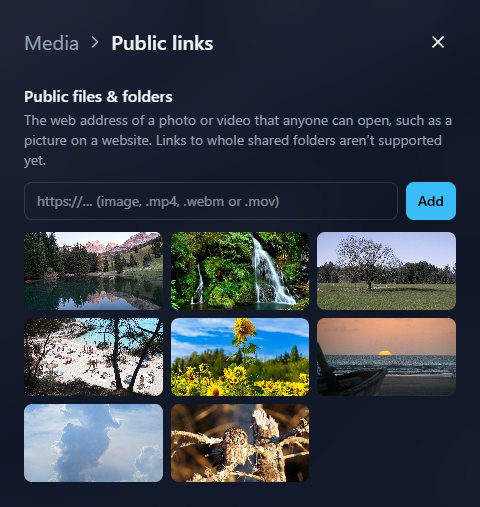
Photos from a web address
In Media → Public links, paste the address of a photo or video that anyone can open (it must start with https:// and be a picture, .mp4, .webm or .mov), then choose Add.
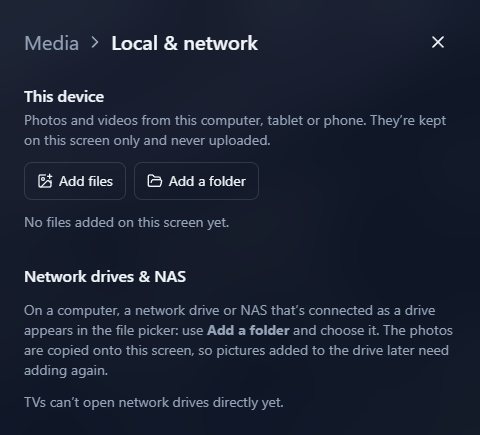
Photos on this device
In Media → Local & network, choose Add files or Add a folder. These stay on that one screen and are never uploaded.
On a computer, a network drive or NAS that’s connected as a drive can be chosen with Add a folder.
Google, Dropbox, Amazon and iCloud
Google Drive and Dropbox are on the way. Amazon Photos and iCloud Photos don’t let other apps read your photos, so download them and add them from the device instead. iCloud and Google calendars do work – see Calendar below.
SECTION 05
The slideshow
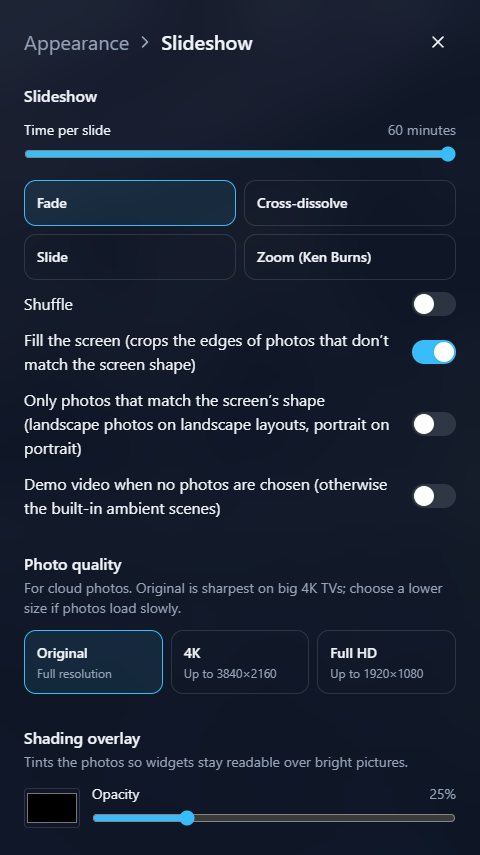
Settings → Appearance → Slideshow controls how the photos are shown:
- Time per slide – from 5 seconds to 60 minutes.
- Transition – fade, cross-dissolve, slide or a slow zoom (Ken Burns).
- Shuffle – a random order.
- Fill the screen – crop photos to fill the screen instead of showing them whole.
- Only photos that match the screen’s shape – landscape photos on a landscape screen, portrait on portrait.
- Photo quality – Original for the sharpest picture on big TVs, or 4K / Full HD if photos load slowly.
- Shading overlay – darkens bright photos so the widgets stay easy to read.
The next photo is downloaded while the current one is on screen, so a slow connection doesn’t leave the screen blank.
SECTION 06
Layouts and the look
Choose a layout
In Settings → Appearance → Layout, pick how the widgets sit over your photos:
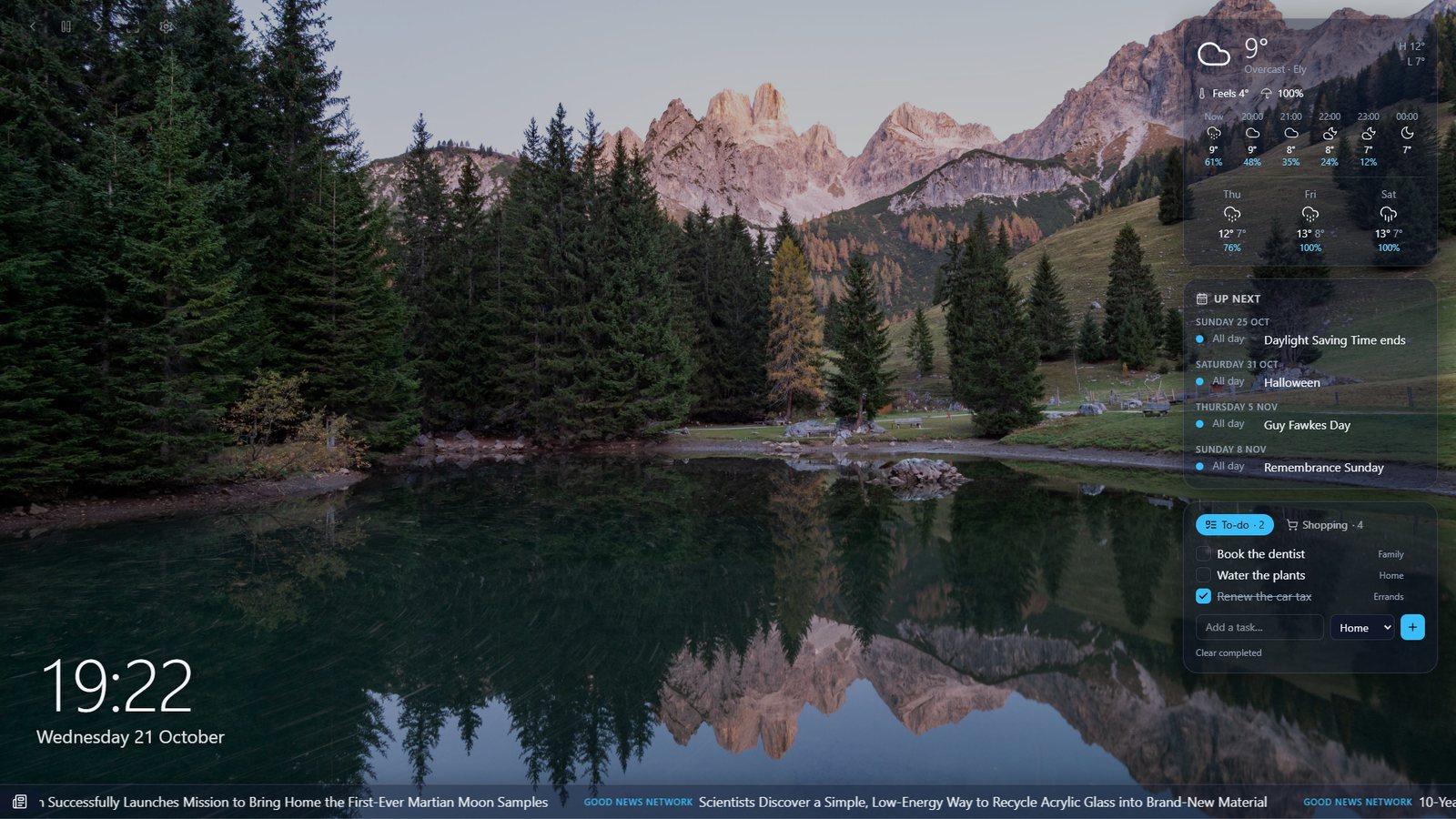
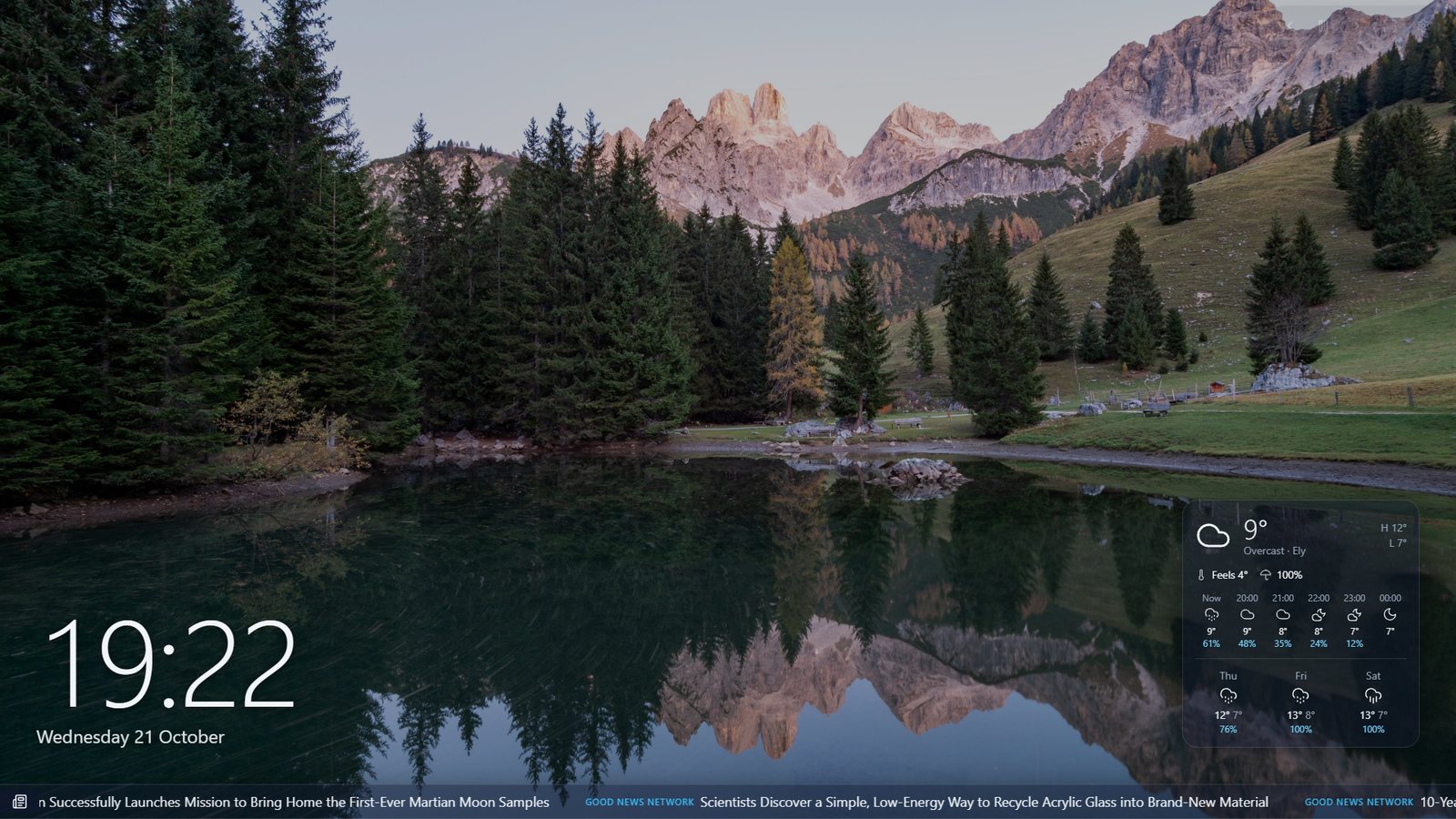
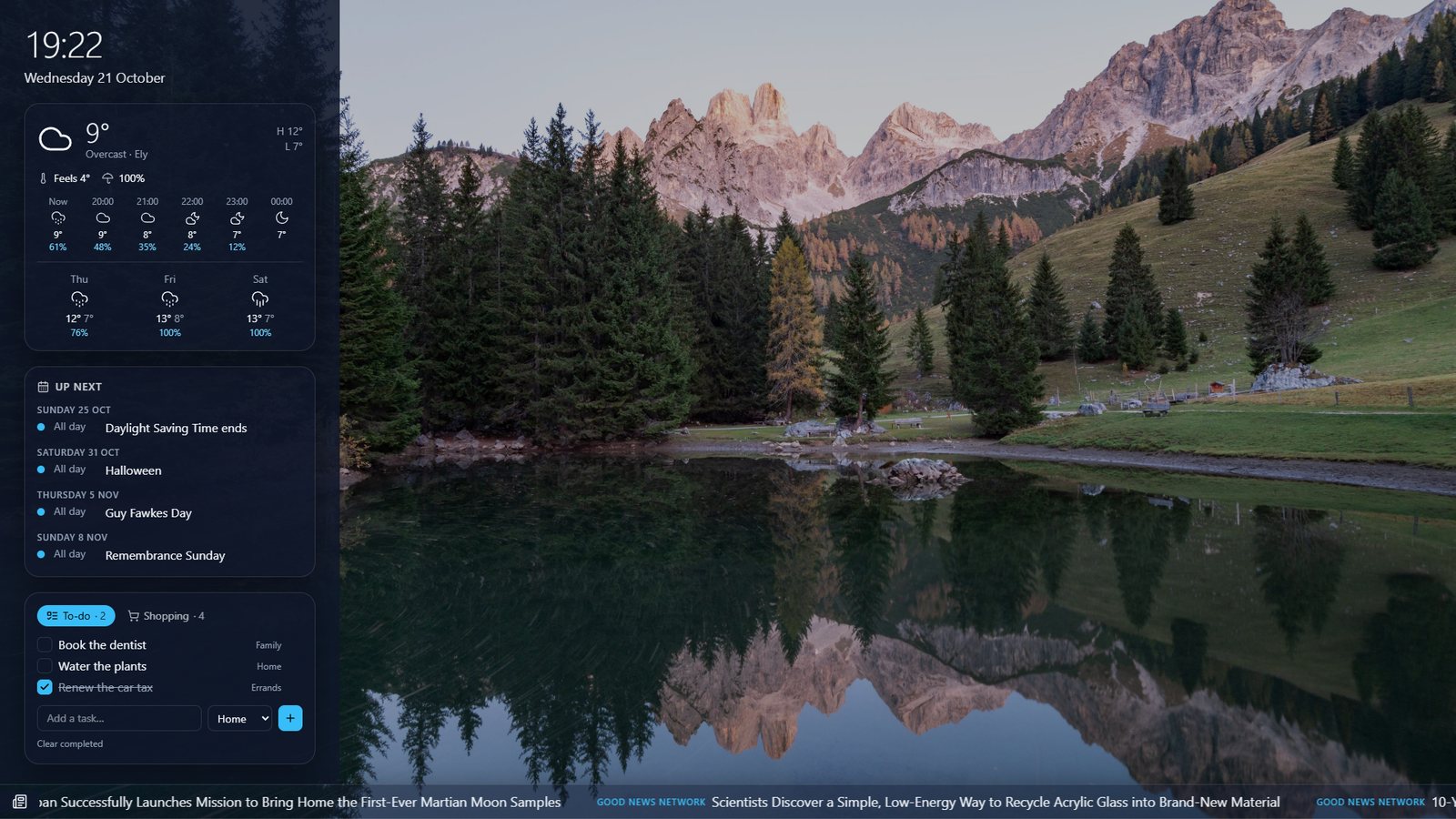
Portrait screens
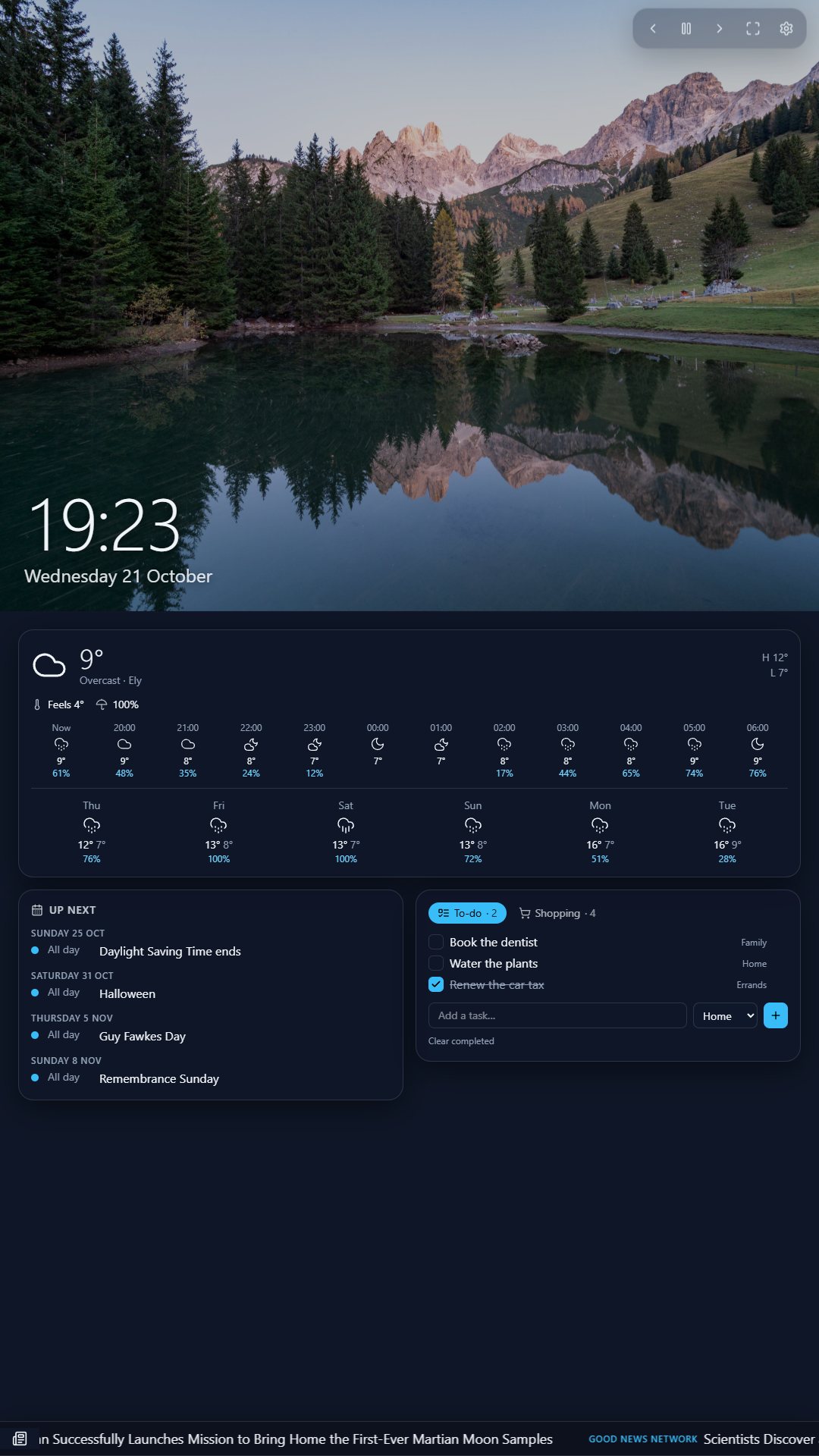
Turn a TV or tablet on its side and KCL Canvas switches to a portrait layout by itself (Portrait Stack or Portrait Glass, chosen in the same place).
Your own arrangement
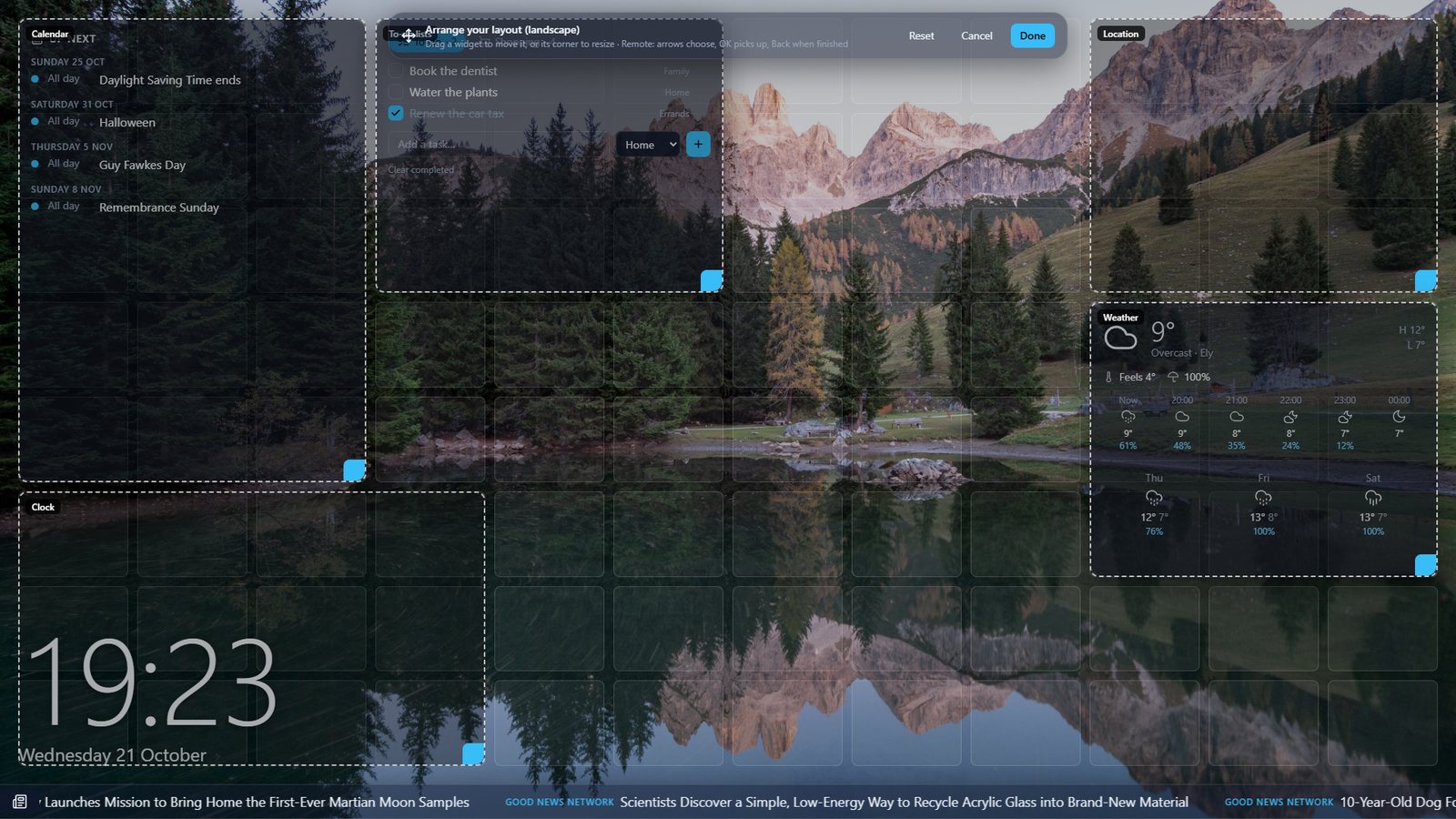
Choose Custom, then Arrange widgets on screen. Drag a widget to move it and drag its corner to resize it; they snap to a grid and never overlap. Choose Done when it looks right.
With a TV remote: use the arrows to choose a widget, press OK to pick it up and move it with the arrows, OK again to resize, and OK once more to put it down. Back finishes.
Theme, size and style
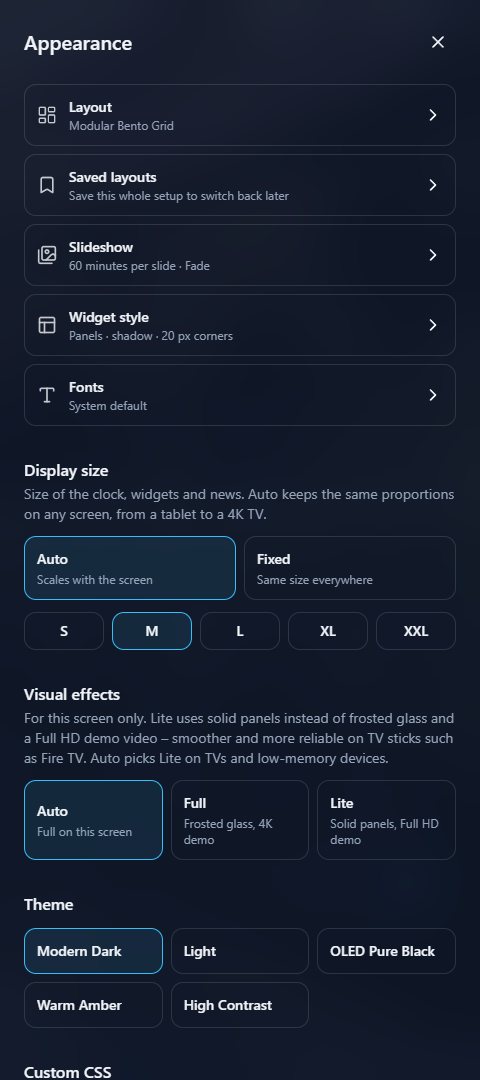
- Theme – Modern Dark, Light, OLED Pure Black, Warm Amber or High Contrast.
- Display size – Auto keeps the same proportions on any screen; S to XXL makes everything smaller or bigger.
- Visual effects – Lite uses solid panels instead of frosted glass. It runs more smoothly on TV sticks such as Fire TV, and Auto picks it for you.
- Widget style – panel colour, see-through, frosted glass, border, shadow and rounded corners, with a preview.
- Fonts – a font for text and another for headings and the clock.
- Custom CSS – for people who know CSS: restyle anything, for example to match your company’s brand.
All of these are in Settings → Appearance.
Saved layouts
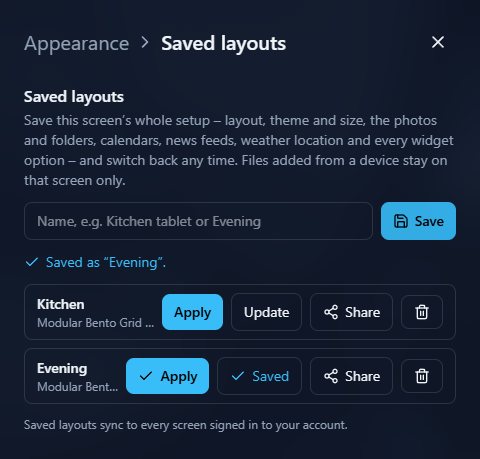
Set things up the way you like, then in Appearance → Saved layouts type a name (say “Kitchen” or “Evening”) and choose Save. A saved layout keeps the whole setup: the layout and look, the photo folders, calendars, news, weather place and every widget option.
- Apply switches to it.
- Update replaces it with what’s on screen now – you’ll see ✓ Saved.
- Share shares it with a group (see Sharing).
Saved layouts are on every screen you sign in to, and each screen can show a different one (see Screens).
SECTION 07
Widgets
Switching widgets on and off
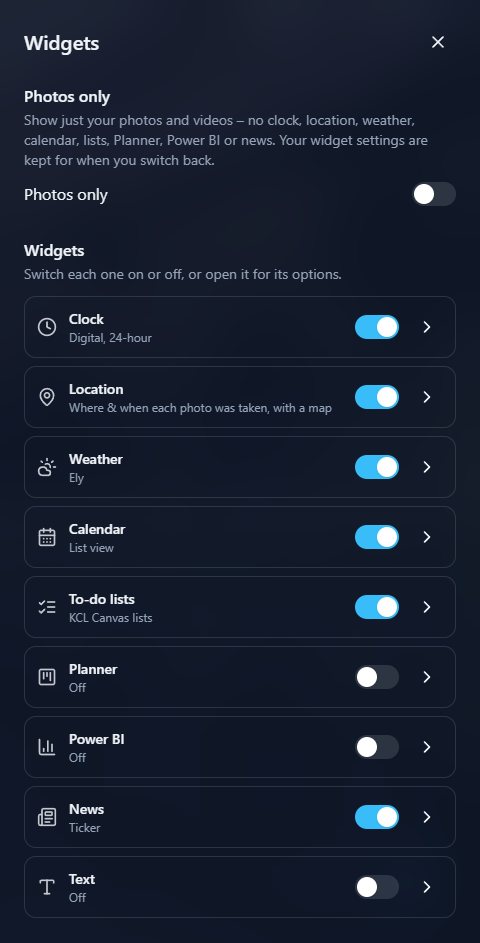
Settings → Widgets lists every widget with an on/off switch; open one for its options. Photos only hides them all at once and keeps their settings for when you switch back.
Tap or select a widget on the screen to interact with it – tick off a task, open a news story or a Planner task.
Clock
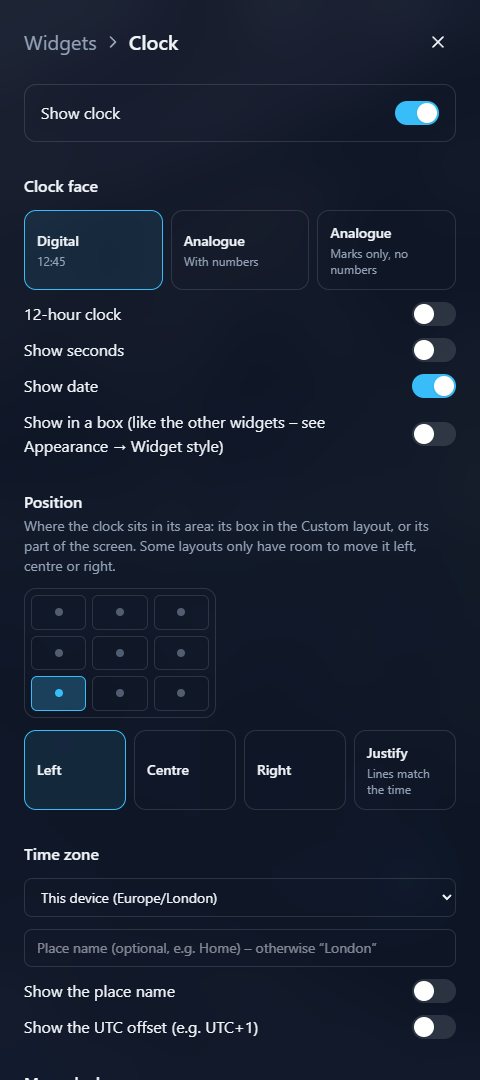
- Digital, or analogue with or without numbers; 12- or 24-hour; seconds; the date.
- Where it sits on screen, and how its lines line up.
- Its time zone and place name – and up to six more clocks for other places, each showing its time difference.
- Show in a box puts it in a panel like the other widgets.
Location – where was this taken?
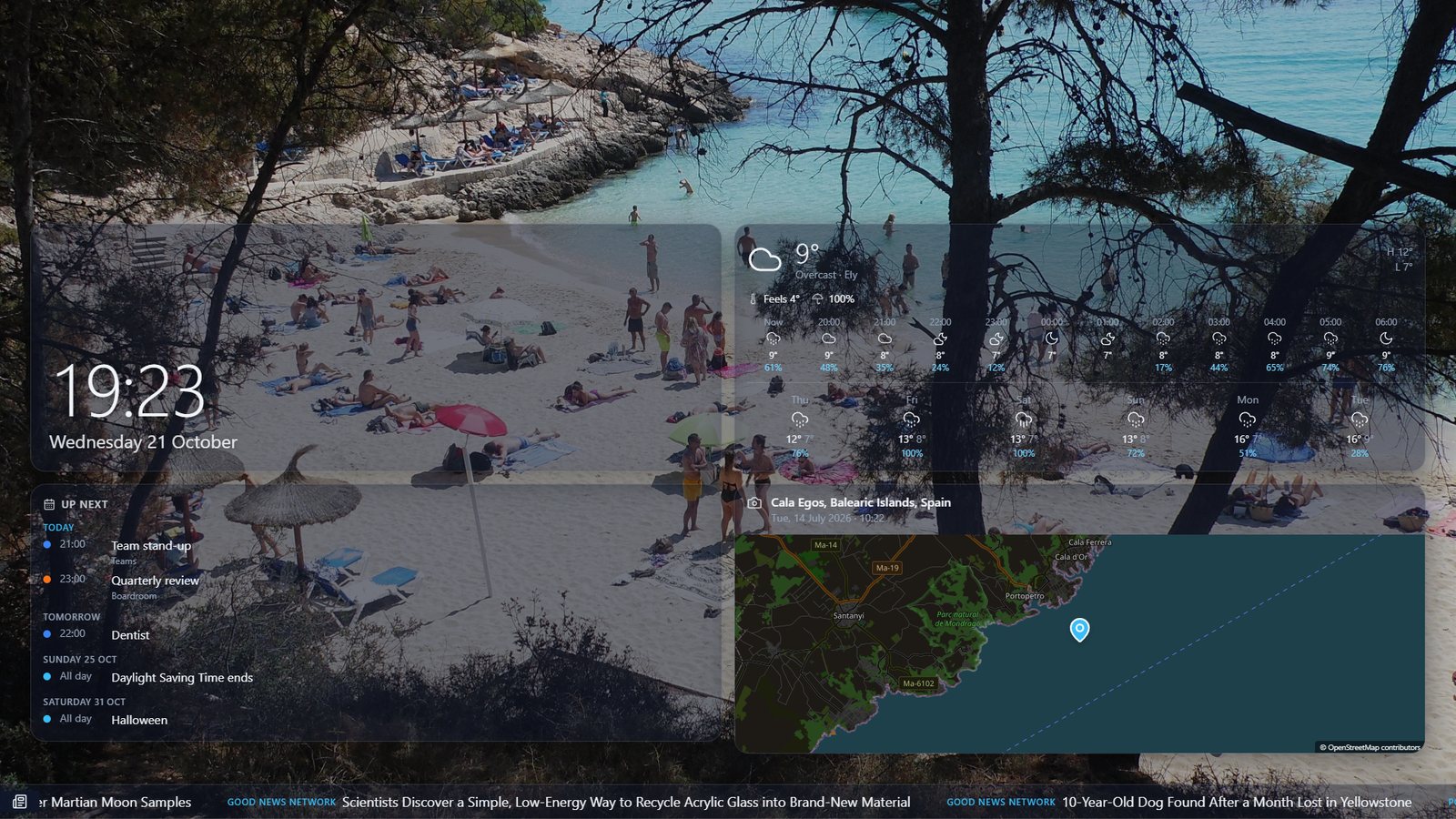
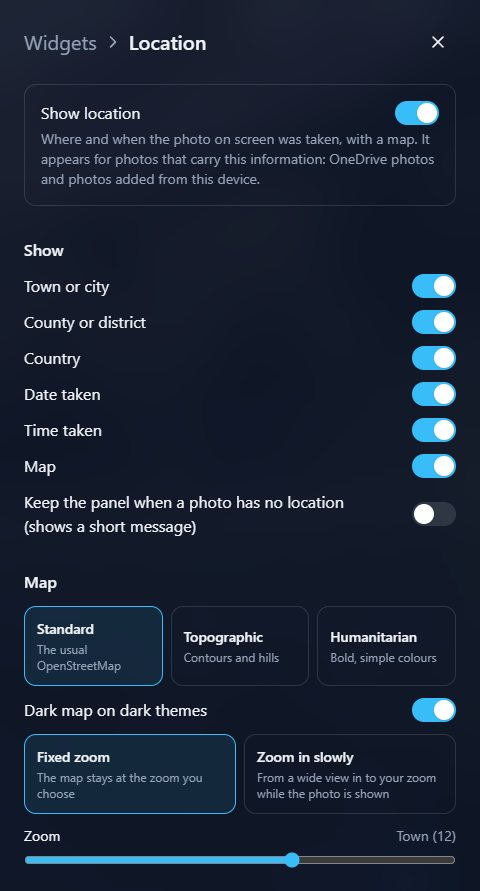
For photos that carry it (most phone photos in OneDrive, and photos added from the device), the Location widget shows the town, area and country, when it was taken, and a map with a pin.
Choose what to show, the map style (Standard, Topographic or Humanitarian), and a fixed zoom or Zoom in slowly while the photo is on screen.
Weather
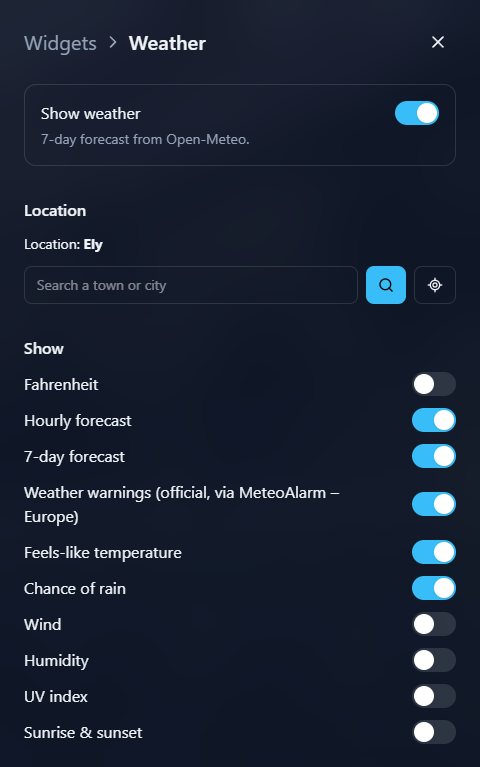
Search for a town or city, or use the target button to use where the screen is. Choose the hourly and 7-day forecasts, feels-like temperature, chance of rain, wind, humidity, UV and sunrise and sunset.
Weather warnings shows official warnings for your area anywhere in Europe (from the national weather services, through MeteoAlarm), with a count of warnings elsewhere in the country.
Calendar
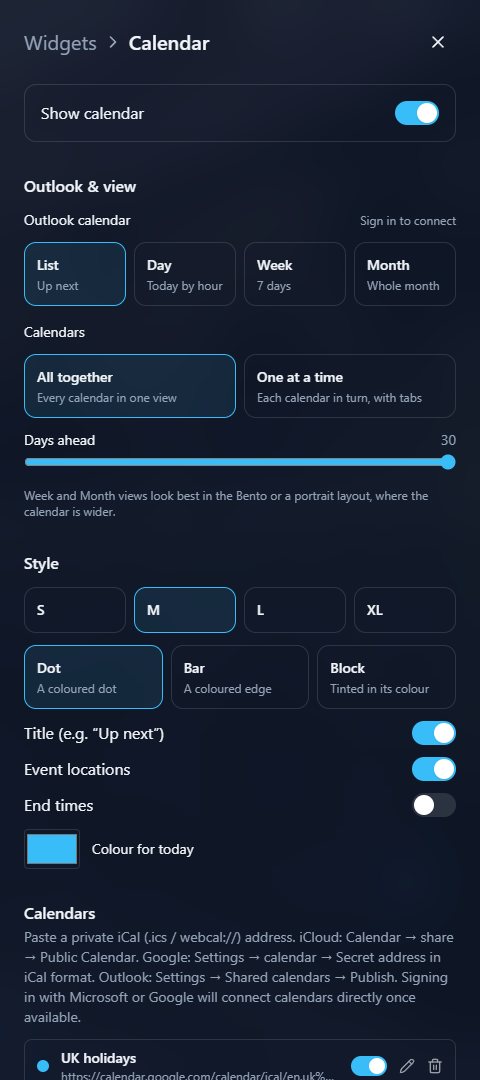
Your Outlook calendars appear by themselves once you’ve signed in with Microsoft – switch off any you don’t want. Add iCloud, Google or any other calendar by its iCal link (it starts with https:// or webcal://), with a name and colour; the pencil edits one later.
- View – a list, a day, a week or the month.
- Calendars – all together, or one at a time with tabs, moving on every 30 seconds to 5 minutes.
- Style – text size, how events look, locations and end times.
Tip: In Google Calendar the link is in the calendar’s Settings → Secret address in iCal format. In iCloud, share the calendar as a Public Calendar and copy the link. In Outlook on the web: Settings → Shared calendars → Publish a calendar.
To-do and shopping lists
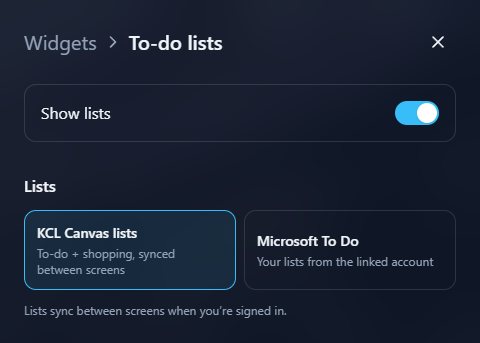
Choose KCL Canvas lists (a to-do list and a shopping list, synced between your screens) or Microsoft To Do, so ticking something off on the TV ticks it off on your phone too. Add items with the box at the bottom of the widget.
Microsoft Planner
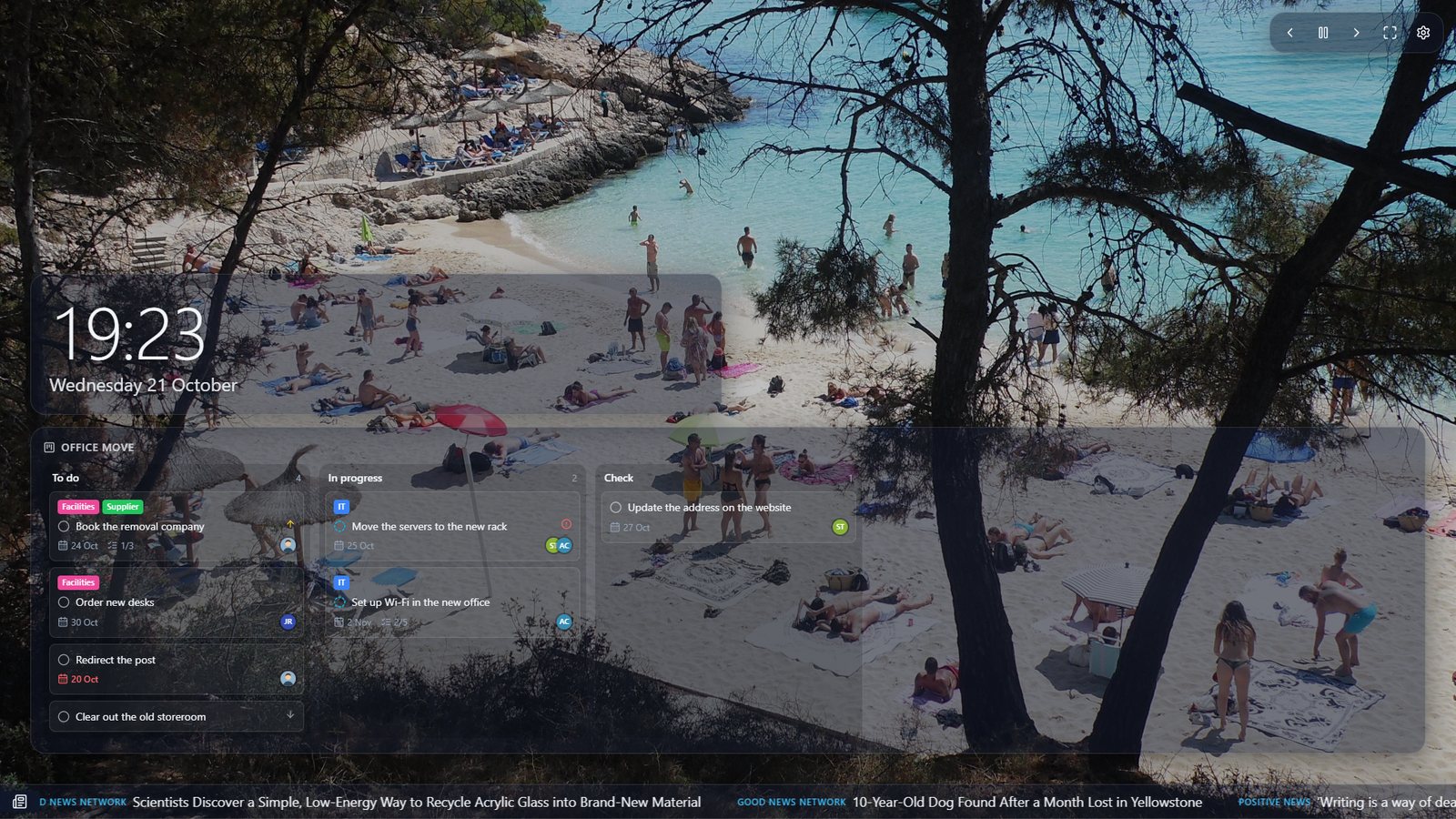
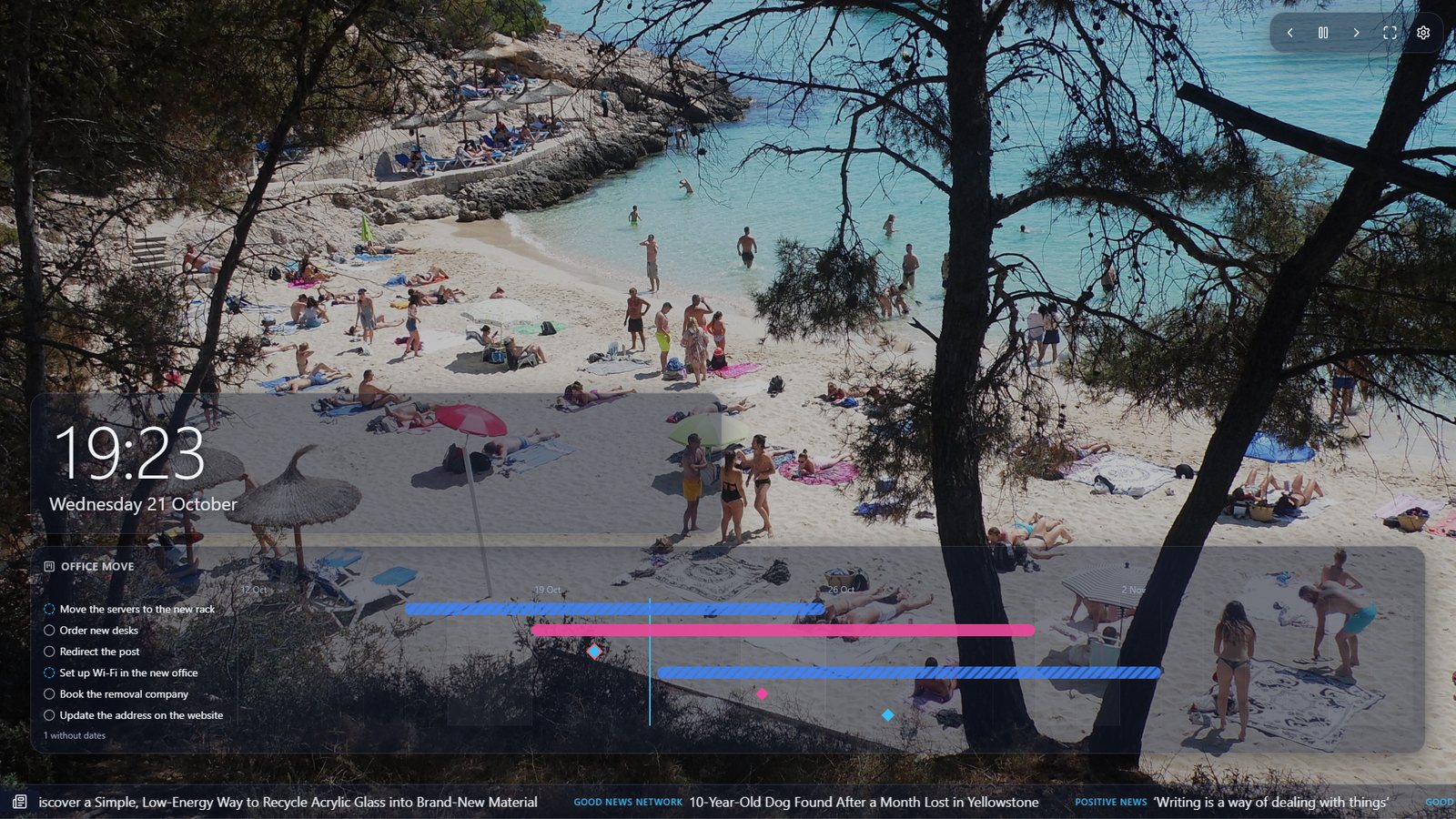
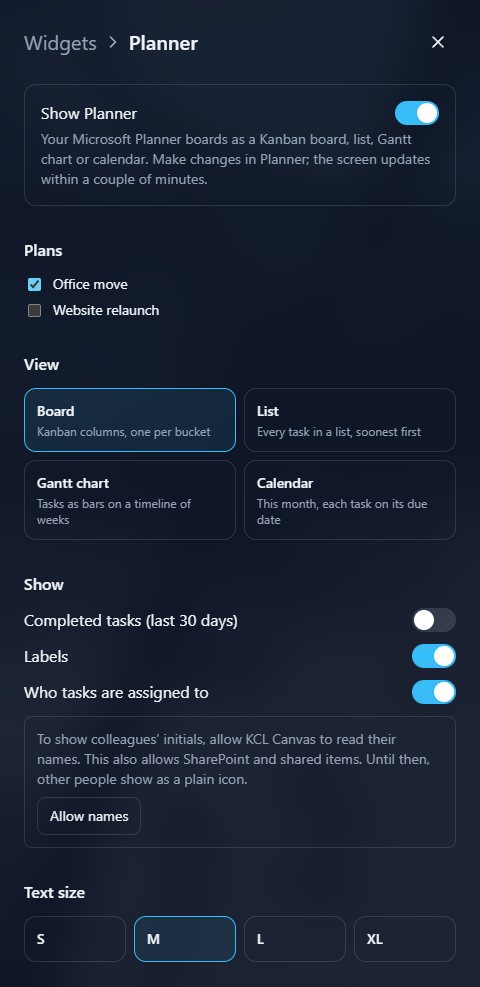
Show your team’s Planner plans as a Board, a List, a Gantt chart or a Calendar. Tick the plans you want; several plans take turns, with tabs.
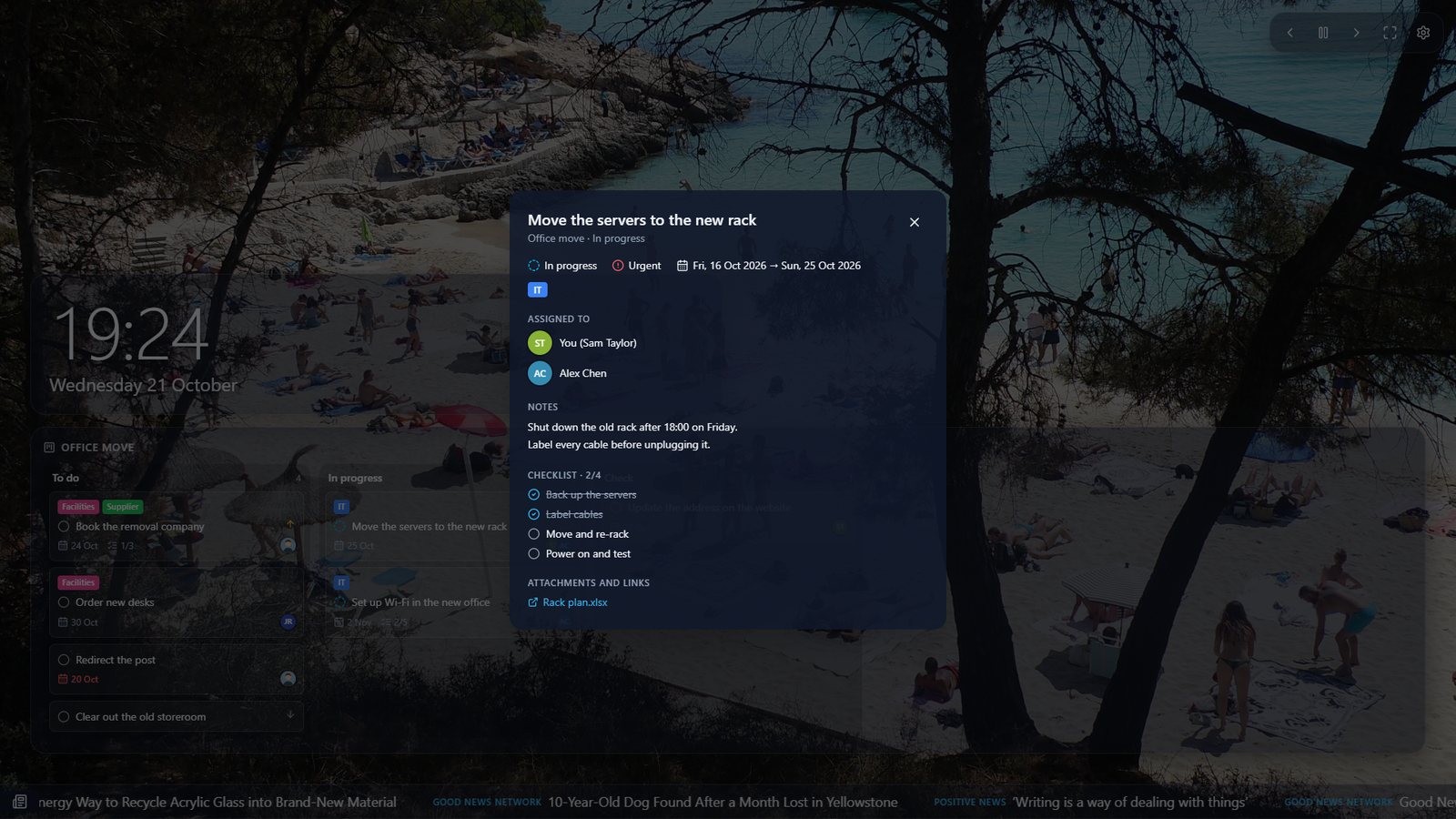
Cards show labels, priority, dates (late ones in red), checklists and who’s doing them. Select a task to see its notes, checklist and links.
Planner is read-only on the screen: make changes in Planner and the screen catches up within a couple of minutes.
Power BI
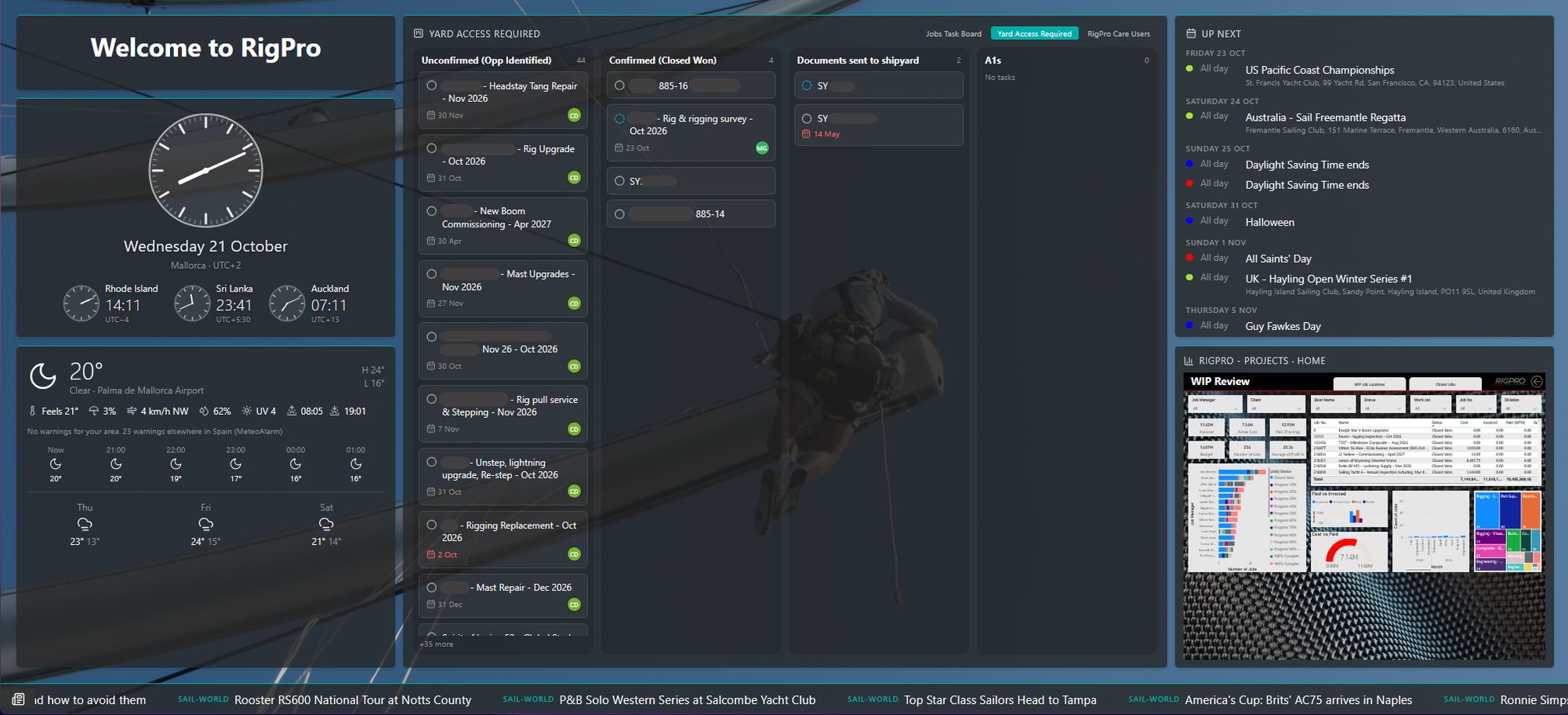
Show Power BI reports (a chosen page) and dashboards, exactly as Power BI draws them. Open Widgets → Power BI, choose Connect Power BI once, then tick the reports and dashboards you want. Options include fit to page or width, a see-through background and refreshing the figures every few minutes. You need a Power BI licence that lets you view the report.
News
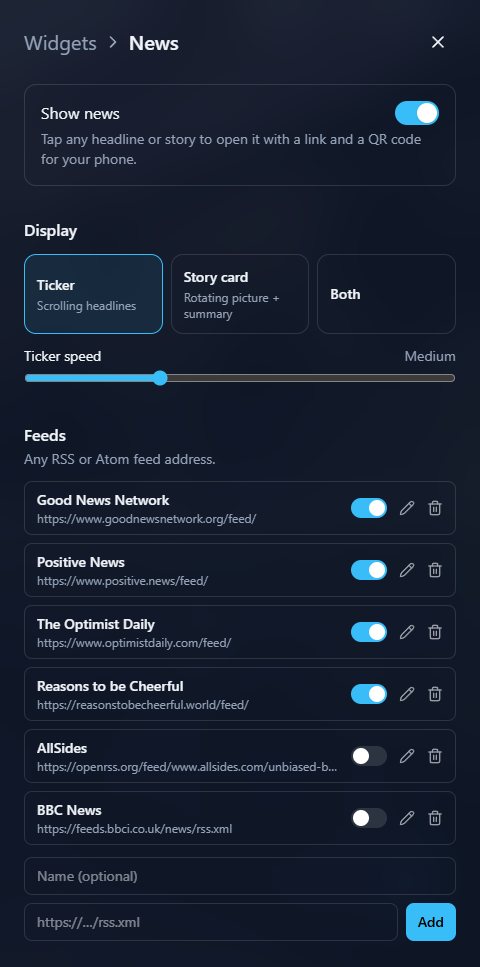
A scrolling ticker of headlines, a story card with a picture, or both. The default feeds are positive-news sites; switch them on or off, edit them, or add any RSS or Atom feed address.
Select a headline to read the summary, with a QR code to open the full story on your phone.
Text
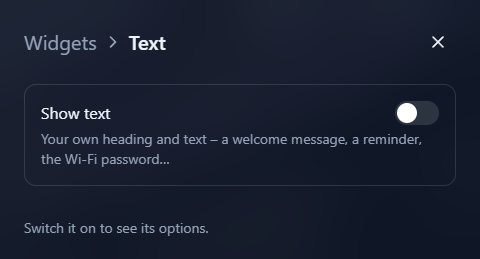
Your own heading and message – a welcome for visitors, the Wi-Fi name, or a reminder – with its alignment and size.
SECTION 08
Screens and schedules
Your screens
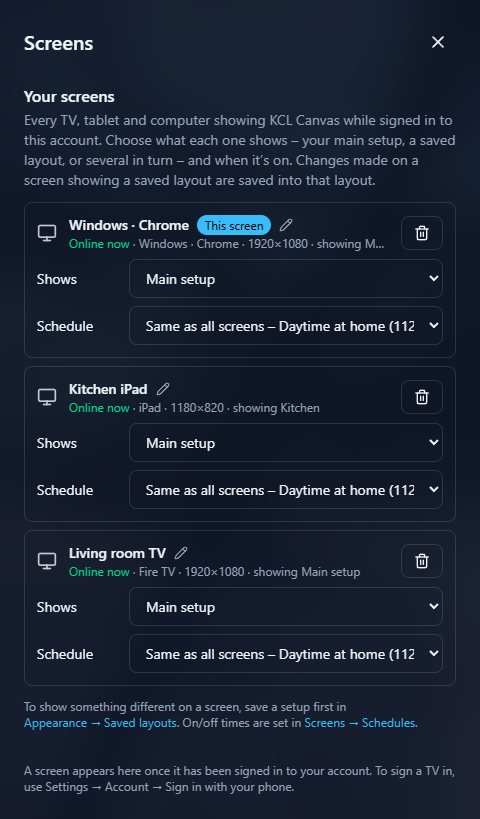
Every TV, tablet and computer signed in to your account appears in Settings → Screens, with whether it’s online. For each one you can:
- Rename it (the pencil), for example “Kitchen iPad”.
- Choose what it shows: your main setup, a saved layout, a canvas shared with you, or several in turn – each for a minute to four hours.
- Choose its schedule, or keep it always on.
- Remove a screen you no longer use.
Changes reach the screen within a minute or two – you don’t have to be in front of it.
Schedules
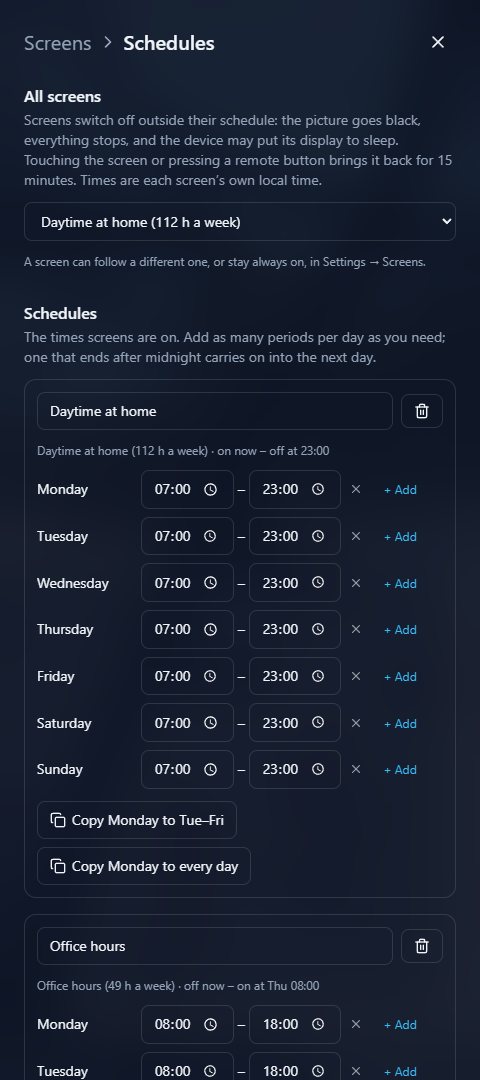
In Screens → Schedules, make schedules such as “Daytime at home” or “Office hours” with the times screens are on for each day; a period that ends after midnight carries on into the next day. Choose one for all screens, and give any screen a different one in Screens.
Outside its times a screen goes black and stops, so the device can let its display sleep. Touching the screen or pressing a button on the remote brings it back for 15 minutes.
SECTION 09
Sharing with family and colleagues
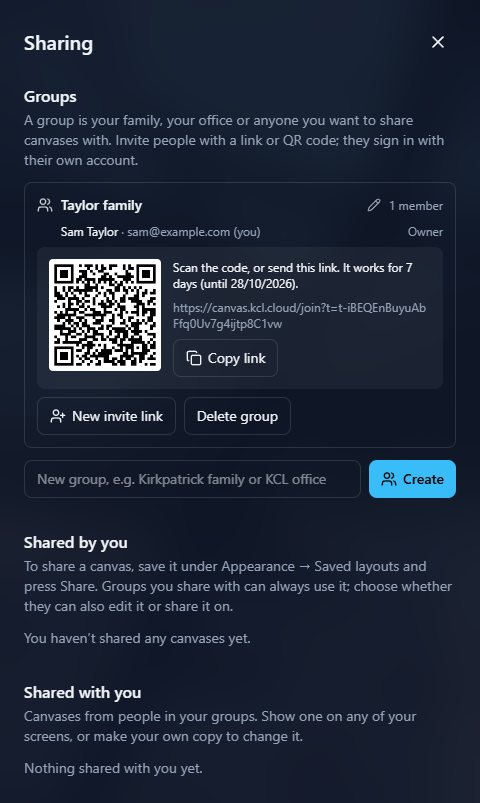
A group is your family, your office or anyone you want to share with. In Settings → Sharing, type a name and choose Create, then New invite link. People scan the QR code or open the link (it works for 7 days) and join with their own account.
To share a canvas, save it in Appearance → Saved layouts and choose Share. You decide:
- which groups can use it, and whether they can edit it or share it on;
- what it includes – the look always; news, weather place, text and web photos if you like; and, if you choose, your calendar links, OneDrive folders, Outlook calendars, To Do lists, Planner boards and Power BI reports.
A shared canvas is live: when you change it, everyone’s screens change too. They can show it on any of their screens or make their own copy. You can change or stop sharing at any time.
Tip: People you share OneDrive, Outlook, To Do or Planner content with don’t need a Microsoft account – but only share what you’re happy for the whole group to see.
SECTION 10
Ads and the lifetime licence
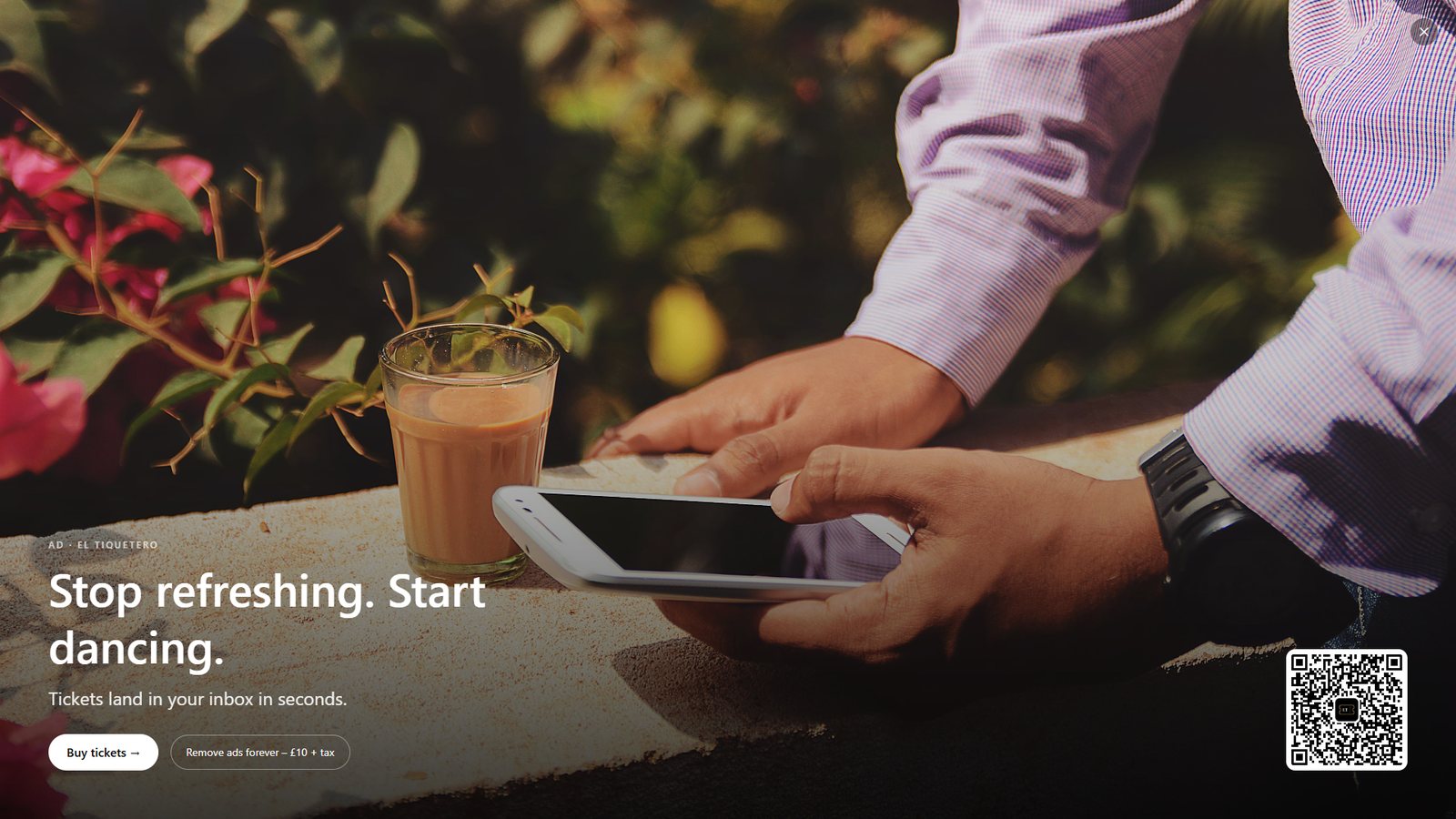
KCL Canvas is free, with every feature. In return a short full-screen ad appears now and then – about once an hour by default – and can be closed.
A one-off £10 lifetime licence (plus local tax, shown before you pay) removes the ads on every screen you sign in to. There’s no subscription.
- Sign in, then open Settings → Account and go to Licence.
- Scan the Pay on your phone code and pay securely with Stripe – no need to sign in on the phone.
- The screen thanks you and turns ad-free as soon as the payment goes through.
You can also choose Remove ads on an ad, or Or pay on this device.
SECTION 11
TV remote and keyboard
On the main screen
- OK, S or Menu – open Settings
- ← / → – previous / next photo
- Space – pause or play the slideshow
- F – full screen
In Settings and pop-ups
- Arrows – move to the next control in that direction
- OK – select; on a slider, OK then ← / → to adjust
- Back or Esc – close
SECTION 12
If something isn’t right
My OneDrive photos don’t show
Check the folder is listed in Media → Cloud storage. If Settings → Account asks you to reconnect Microsoft, do so – Microsoft sometimes asks again after a password change.
Photos are slow to appear on the TV
Set Photo quality to 4K or Full HD in Appearance → Slideshow, and Visual effects to Lite in Appearance.
The TV remote can’t reach a setting
Use the arrows to move and OK to select. Left and right move between the menu and its options; Back closes Settings.
A calendar link doesn’t work
Use the calendar’s iCal link (often ending .ics), not the address of the calendar’s web page. It must start with https:// or webcal://.
I can’t see SharePoint, shared calendars or colleagues’ names
With a work or school account, choose Allow SharePoint and shared items in Settings → Account. Some organisations need an administrator to allow apps first.
Planner says Microsoft is limiting requests
Microsoft limits how often apps can read Planner. The screen keeps showing the last board it had and tries again by itself.
The screen went black
It’s probably outside its schedule (Settings → Screens). Touch the screen or press a button on the remote to bring it back for 15 minutes.
SECTION 13
Help and support
Settings → About & help has a link and QR code for this guide, the version you’re running and what’s new in each release. On any screen you can also go to canvas.kcl.cloud/help.
Still stuck? Email support@kcl.cloud – we usually reply within one working day.