KCL CANVAS
Your screens, beautifully useful
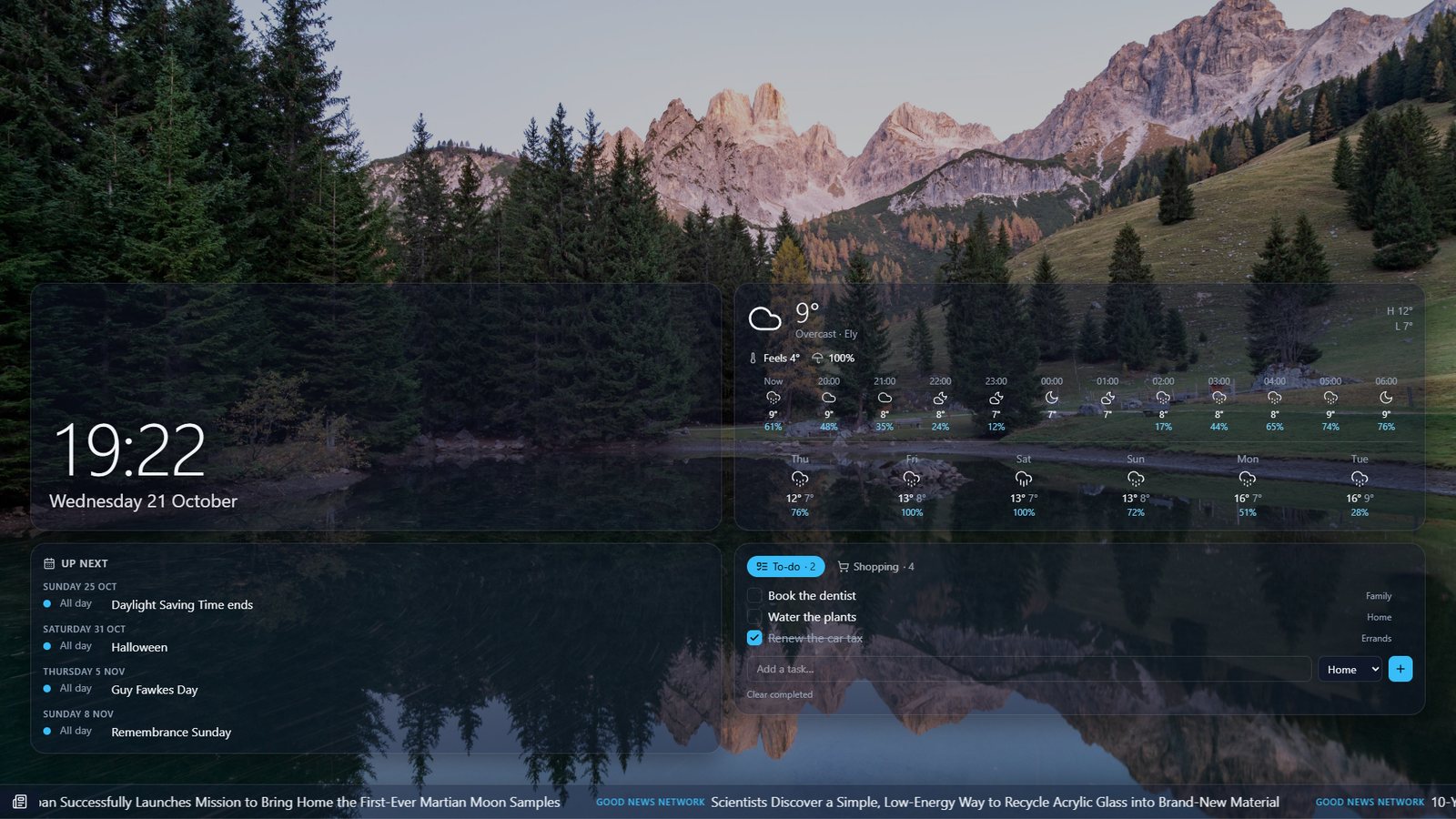
KCL Canvas turns a TV, wall-mounted tablet or any browser into an ambient display: your photos and videos with the time, weather, calendar, lists and news at a glance.
Free to use · Works on TVs, tablets and browsers · No app to install
Everything on one calm screen
Pick what you want to see. Every widget can be turned on or off, placed where you like and styled to suit the room.
Your photos and videos
Folders from OneDrive – and, with a work or school account, SharePoint libraries and folders shared with you. Photos show at full resolution, and you can add files from your device or by web address.
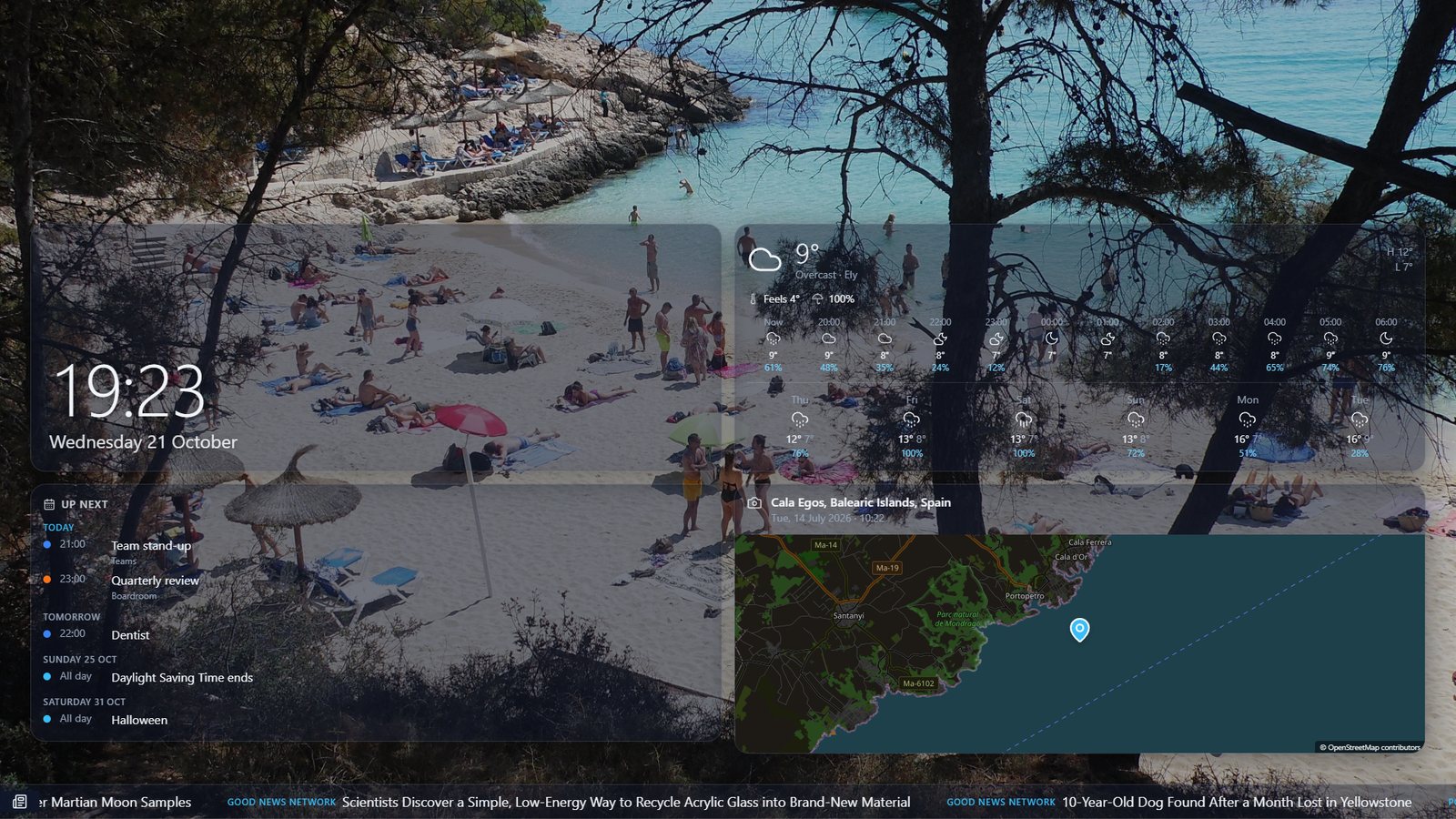
Where was this taken?
The Location widget shows the town and country a photo was taken in, when, and a map with a pin – for OneDrive photos and photos from your device.
Every calendar
All your Outlook calendars, plus iCloud and Google calendars by link. Show a list, a day, a week or the month – all together, or one calendar at a time.
Lists and Planner
Microsoft To Do, so ticking something off on the TV ticks it off everywhere, or the built-in lists. Microsoft Planner boards as a board, list, Gantt chart or calendar.
Weather and warnings
Hourly and 7-day forecasts, feels-like, rain and wind, plus official weather warnings for your area across Europe.
Power BI
Your Power BI reports and dashboards, exactly as Power BI draws them, refreshed through the day.
Clocks
Digital or analogue, with up to six more clocks for the places that matter to you.
Good news
A rolling ticker or story card of positive news by default, with your own feeds as an option. Scan a story’s QR code to read it on your phone.
Layouts and themes
Landscape and portrait layouts, your own arrangement on a grid, five themes, fonts, panel styles – and custom CSS for your brand.
FOR HOMES
Your memories, on show
Point KCL Canvas at a OneDrive folder and new photos appear on the screen by themselves. The kitchen tablet can show the family calendar and shopping list, while the living-room TV shows your holiday photos and where they were taken.
- Each screen can show something different
- Screens go dark at night on a schedule
- Share a canvas with the family by QR code
FOR BUSINESSES
Reception screens and team dashboards
Welcome visitors and keep the team in the picture: your Planner boards, the team calendar, Power BI figures and clocks for the places you work with, over your own photos – styled in your brand with custom CSS.
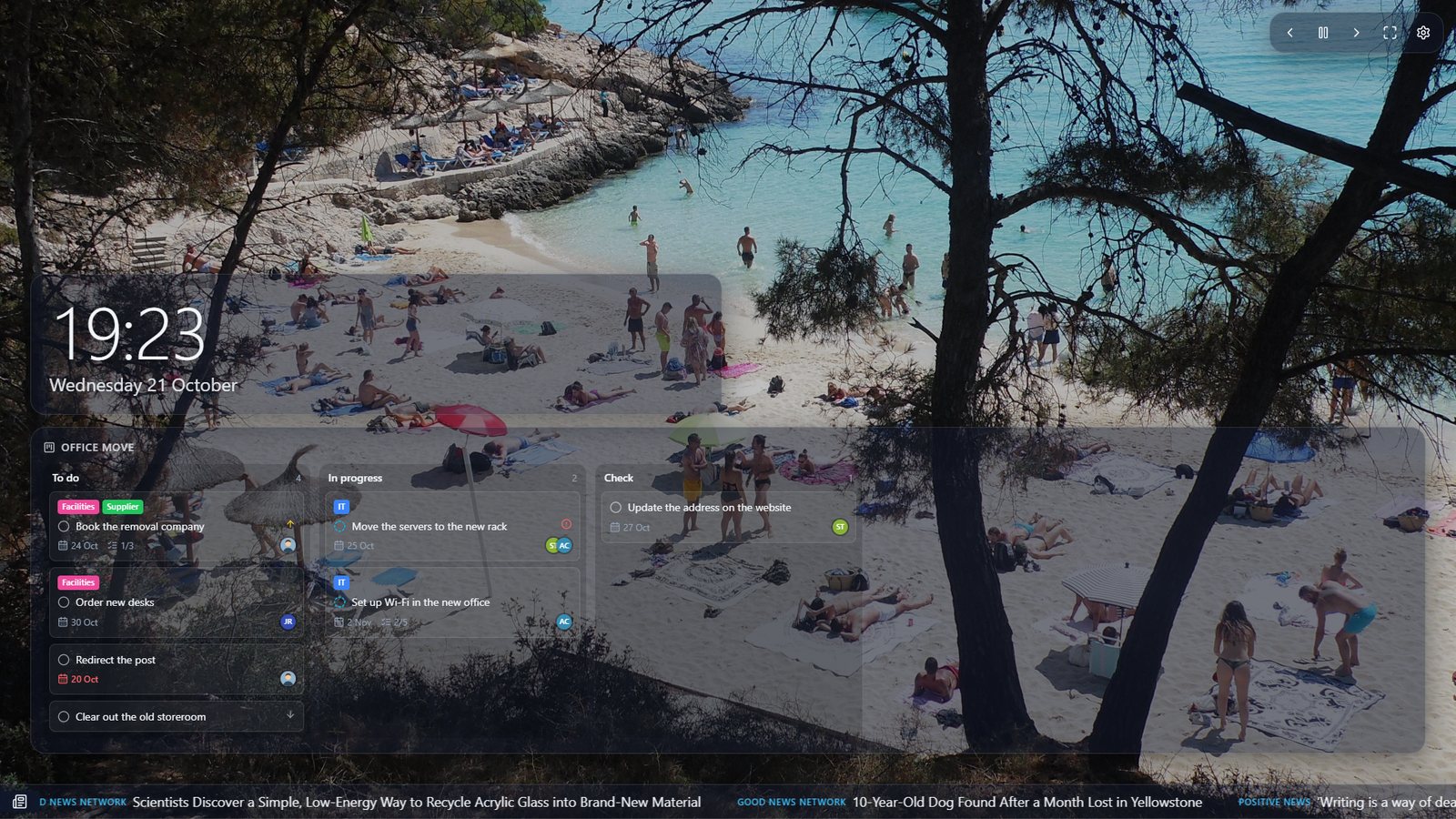
A Microsoft Planner board on the office screen, with labels, dates and who’s doing what.
Run every screen from one place
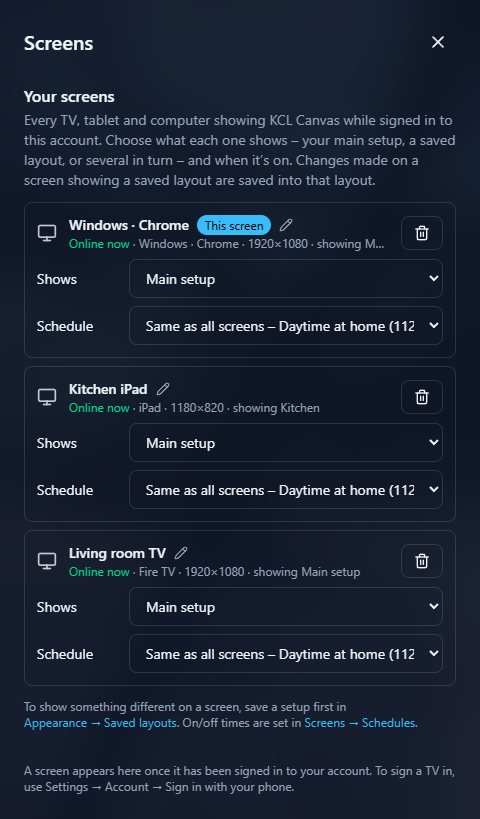
Every TV, tablet and computer signed in to your account is listed in Settings → Screens. Rename them, choose what each one shows – or let it rotate through several layouts – and set when it’s on.
- Schedules turn screens off at night or out of hours; a touch wakes them
- Changes reach every screen within a minute or two
- Settings sync to every screen on your account
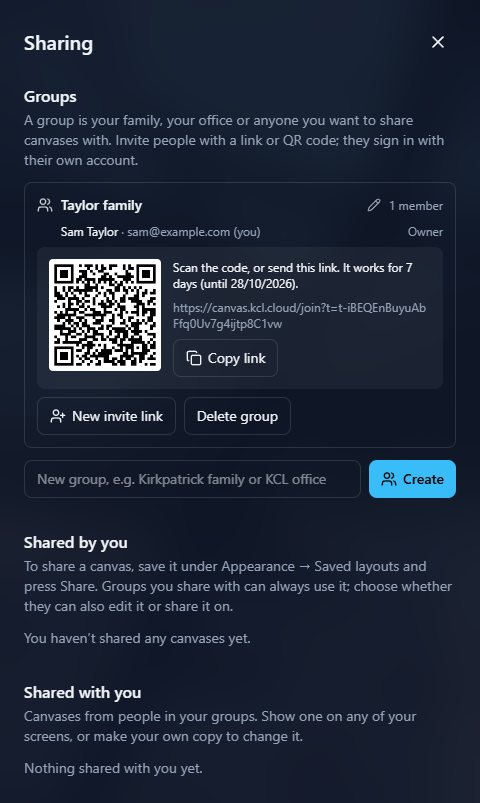
Share with family and colleagues
Make a group, invite people with a link or QR code, and share a canvas with them. It stays live: change it once and every screen follows.
- You choose who can edit it or share it on
- You choose what’s included – even your OneDrive photos, Outlook calendars, To Do lists, Planner boards and Power BI reports
- They don’t need a Microsoft account to see what you share
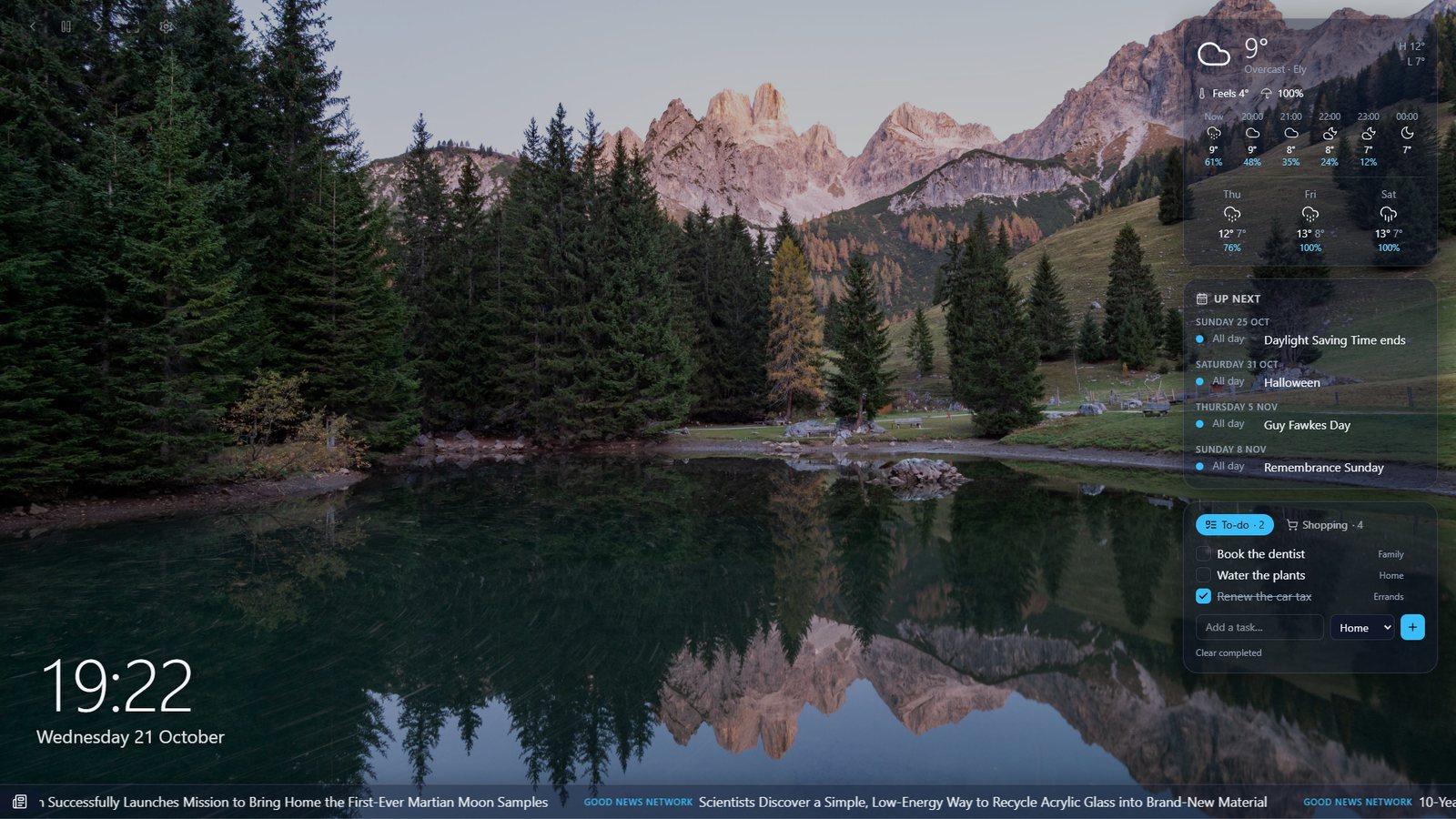
Made for the TV remote
KCL Canvas runs in the TV’s web browser – including Fire TV, Google TV and Android TV, and digital-signage apps such as AbleSign – so there’s nothing to install. On computers and phones it installs as an app.
- Move around the settings with the arrow keys and OK
- Sign the TV in by scanning a code with your phone
- Pay for the licence on your phone, too
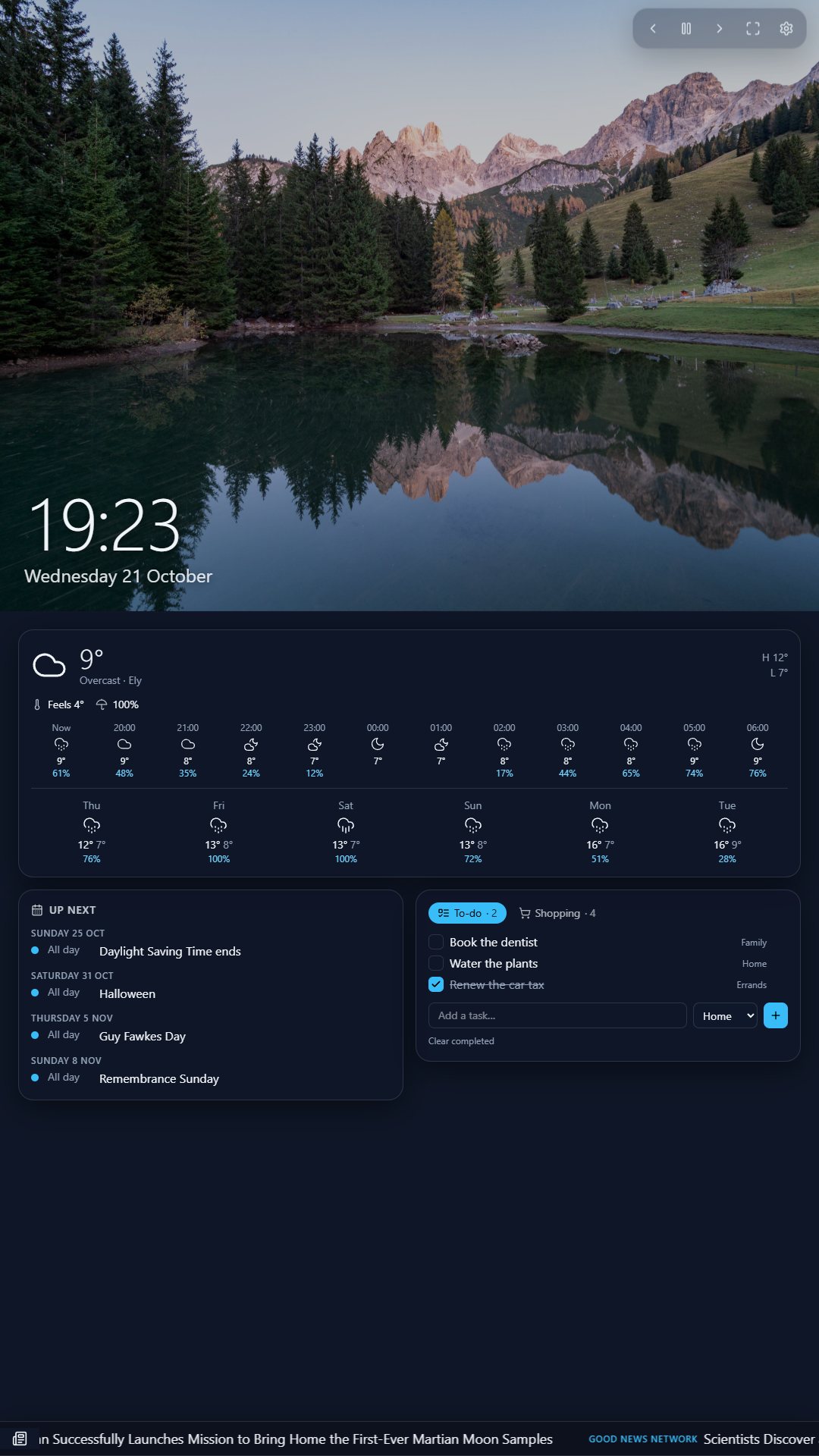
Portrait screens too
Rotate a TV or mount a tablet in portrait and KCL Canvas switches to a portrait layout automatically. It can even show only the photos that match the screen’s shape.
Simple pricing
Free
£0
- Every feature, on every screen
- An occasional short ad
Lifetime licence
£10 + tax, one-off – no subscription
- No ads, ever, on every screen you sign in to
- Pay securely with Stripe – on a TV, just scan the code with your phone
Tax (such as VAT) depends on where you live and is shown before you pay.
Set up on a TV in three steps
- On the TV, open the web browser (or a signage app such as AbleSign) and go to canvas.kcl.cloud.
- Press OK on the remote to open Settings, go to Account, choose Show sign-in code and scan it with your phone.
- Choose your photos, calendars and lists – on the TV or on your phone. Everything syncs to every screen on your account.
The how-to guide walks through every setting with pictures.
Questions
Is KCL Canvas really free?
Yes. Every feature is free, with an occasional short ad. A one-off £10 + tax lifetime licence removes the ads on every screen you sign in to.
Which photo services does it work with?
OneDrive (personal, work and school), SharePoint libraries and folders shared with you, files from your device, and photos or videos by web address. Google Drive and Dropbox are on the way. Amazon Photos and iCloud Photos don’t allow other apps to read them. Calendars work with Outlook, and with iCloud and Google by calendar link.
Do you copy or store my photos?
No. Photos and videos are shown straight from your OneDrive or SharePoint. Files you add from a device stay on that device. We store your settings so every screen matches.
Can it show Microsoft Planner and Power BI?
Yes. Planner boards show as a board, list, Gantt chart or calendar, and Power BI reports and dashboards show exactly as in Power BI (you need a Power BI licence that lets you view them).
Can each screen show something different?
Yes. Save a setup as a layout, then choose in Settings → Screens what each screen shows – or let it rotate through several. Schedules turn screens off at night or out of hours.
Can I use it on more than one screen?
Yes – sign in on each screen and they all share your settings. A lifetime licence covers all of them.
What do I need?
A screen with a modern web browser and an internet connection. A free KCL Canvas account (or Microsoft sign-in) lets you sync settings and use OneDrive, Outlook, To Do and Planner.
Where can I find help?
The how-to guide covers every setting with pictures; in the app, it’s under Settings → About & help, or at canvas.kcl.cloud/help. You can also email support@kcl.cloud.
Ready when you are
Open KCL Canvas on any screen – no download, no card needed.