
KCL CLIENT PORTAL · HOW-TO GUIDE
How to use the KCL Client Portal
Everything you need: signing in, finding your way round, raising tickets, checking your hours, licences and invoices, and – for portal managers – inviting colleagues.
In this guide
Fourteen short sections – jump straight to the one you need. The pictures use made-up companies, with names and figures blurred.
SECTION 01
Getting started
What the portal is
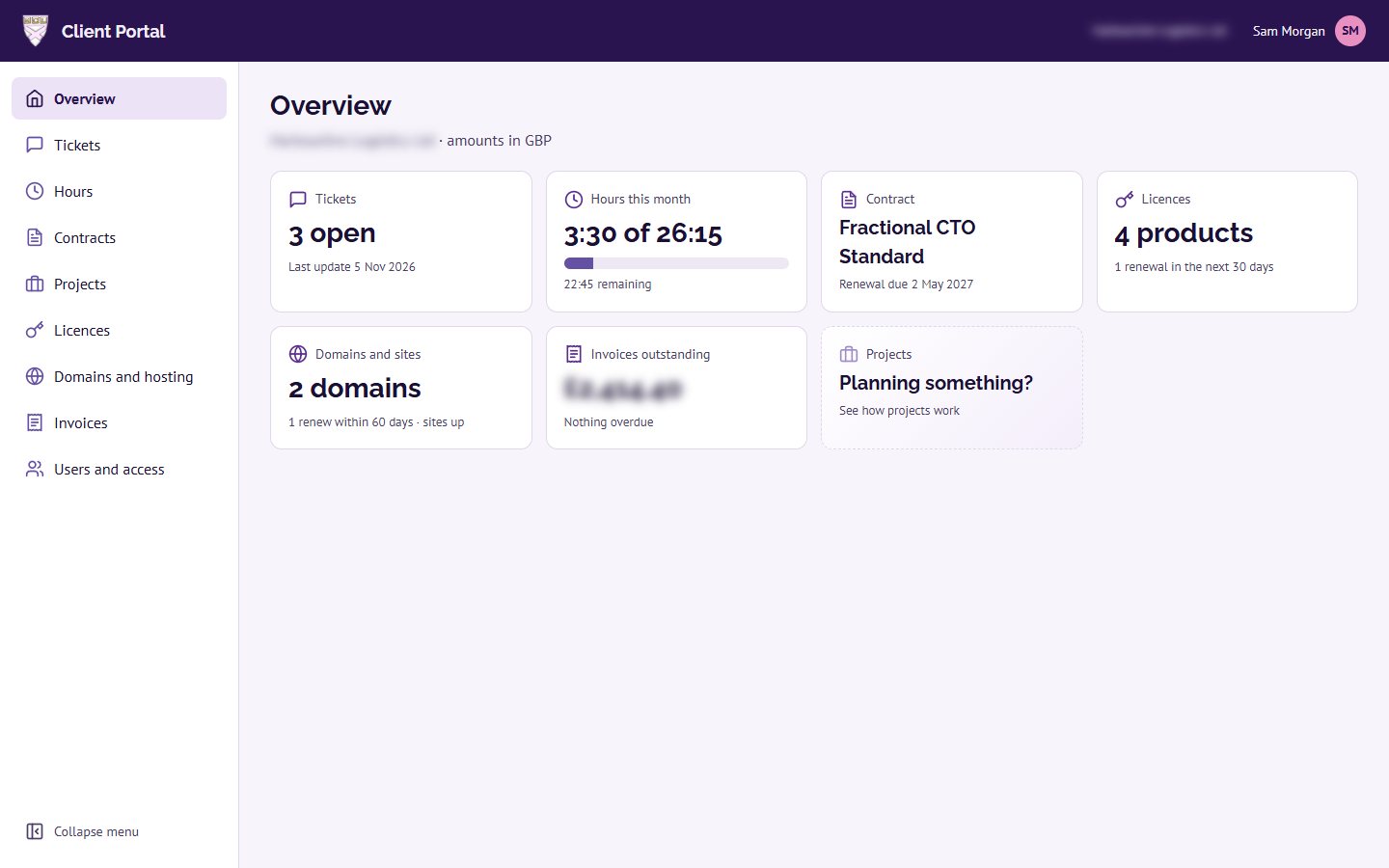
The KCL Client Portal is where KCL clients see everything we look after for them: support tickets, contract hours, contracts, projects, licences, domains and websites, and invoices.
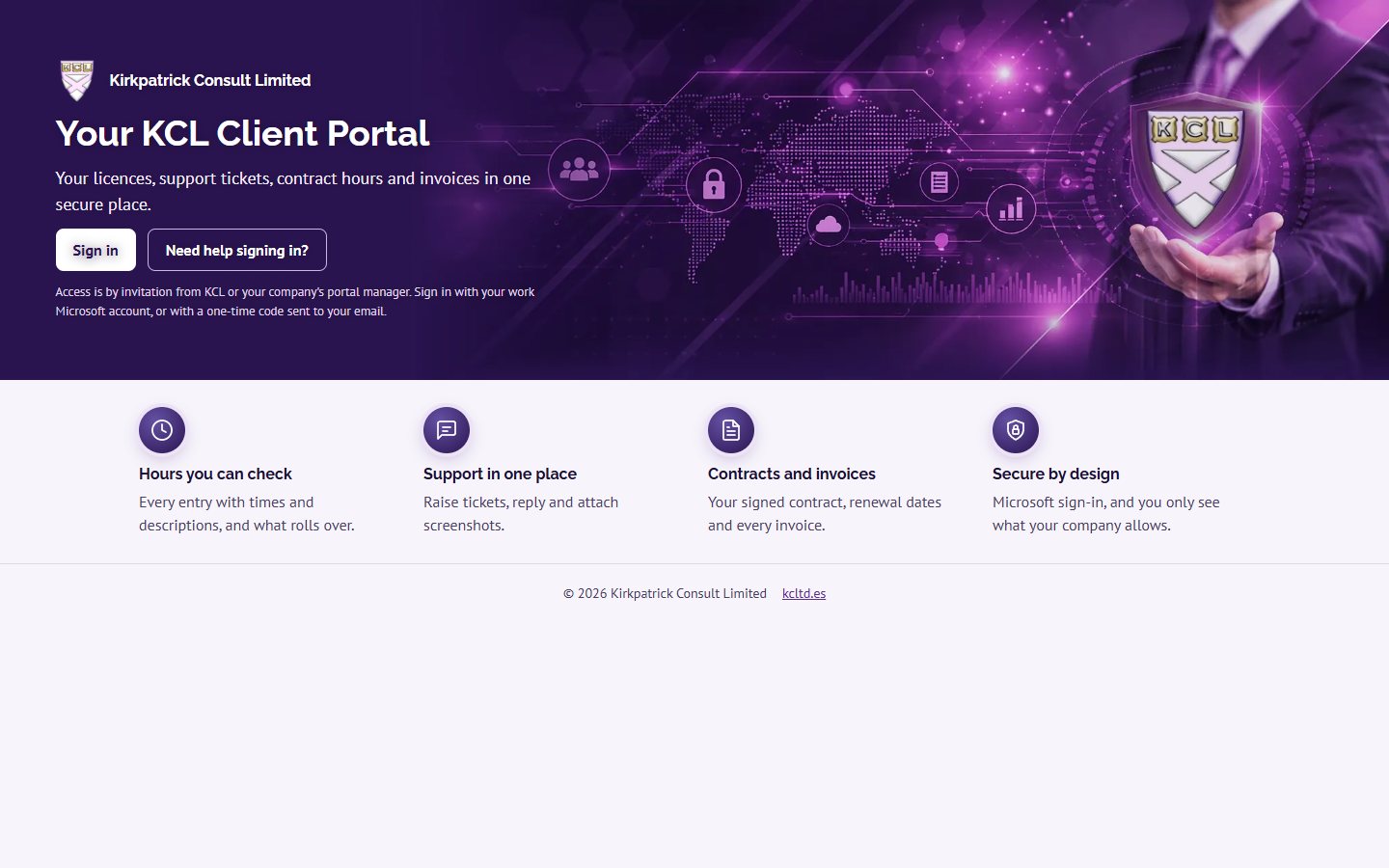
It runs in your web browser, so there’s nothing to download. Go to portal.kcl.cloud and choose Sign in.
What you’ll see
You see the sections your company’s portal manager (or KCL) has switched on for you. If you think you should see something that isn’t there, ask your portal manager – see Users and access.
Tip: Every section you can see is listed in the menu even when it’s empty. An empty section shows what KCL can offer, with an Ask us about this button.
SECTION 02
Signing in
Your invitation
When KCL or your portal manager gives you access, you receive an invitation email from Microsoft, sent on behalf of Kirkpatrick Consult Limited. Open it and choose Accept invitation, then follow the steps on Microsoft’s pages.
- If your work email is a Microsoft 365 account, you sign in with it as usual – with your normal password and any extra security step your company uses.
- If it isn’t, Microsoft emails you a one-time code. Type it in to sign in – there’s no password to create.
Microsoft may ask you to agree to KCL’s organisation viewing your basic profile (your name and email address). That’s needed for the portal to know who you are.
Tip: If you already open files KCL has shared with you, you may have a guest account with KCL already. Microsoft uses the same one, so there’s nothing new to set up.
Signing in after that
Go to portal.kcl.cloud, choose Sign in, and pick the account the invitation was sent to. If you use more than one Microsoft account, make sure you choose that one.
Signing out
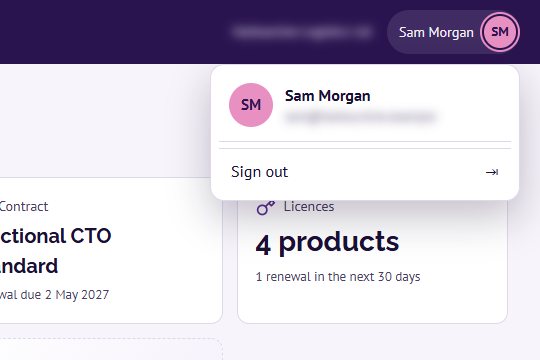
Choose your photo or initials at the top right to open your account menu. It shows your name and email address, and Sign out at the bottom.
SECTION 03
Install it as an app
Install the portal and it opens in its own window, without the browser’s address bar, from an icon on your taskbar, Dock or home screen. Open portal.kcl.cloud first, then:
- Windows – Microsoft Edge: choose the … menu → Apps → Install this site as an app. Then right-click its icon on the taskbar and choose Pin to taskbar.
- Windows or Mac – Google Chrome: choose the install icon at the right of the address bar (or the ⋮ menu → Cast, save and share → Install page as app).
- Mac – Safari: choose File → Add to Dock.
- iPhone and iPad – Safari: choose the Share button → Add to Home Screen.
- Android – Chrome: choose the ⋮ menu → Add to Home screen or Install app.
The app is just a shortcut to the portal: it stores none of your information on the device, and you still sign in as usual.
SECTION 04
Finding your way round
The Overview
After signing in you see the Overview: a tile for each section with the headline – open tickets, hours used this month, your contract and when it’s due for renewal, licences, domains and anything outstanding on invoices. Choose a tile to open that section.
The menu
The menu on the left lists your sections. Collapse menu at the bottom shrinks it to icons for more room; hover over an icon to see its name. The portal remembers your choice.
If you work with more than one company
If you have access to more than one company – say you run two businesses – a company drop-down appears at the top right. Choose a company and every page switches to it. Each company’s information is always kept separate.

Sorting and filtering lists
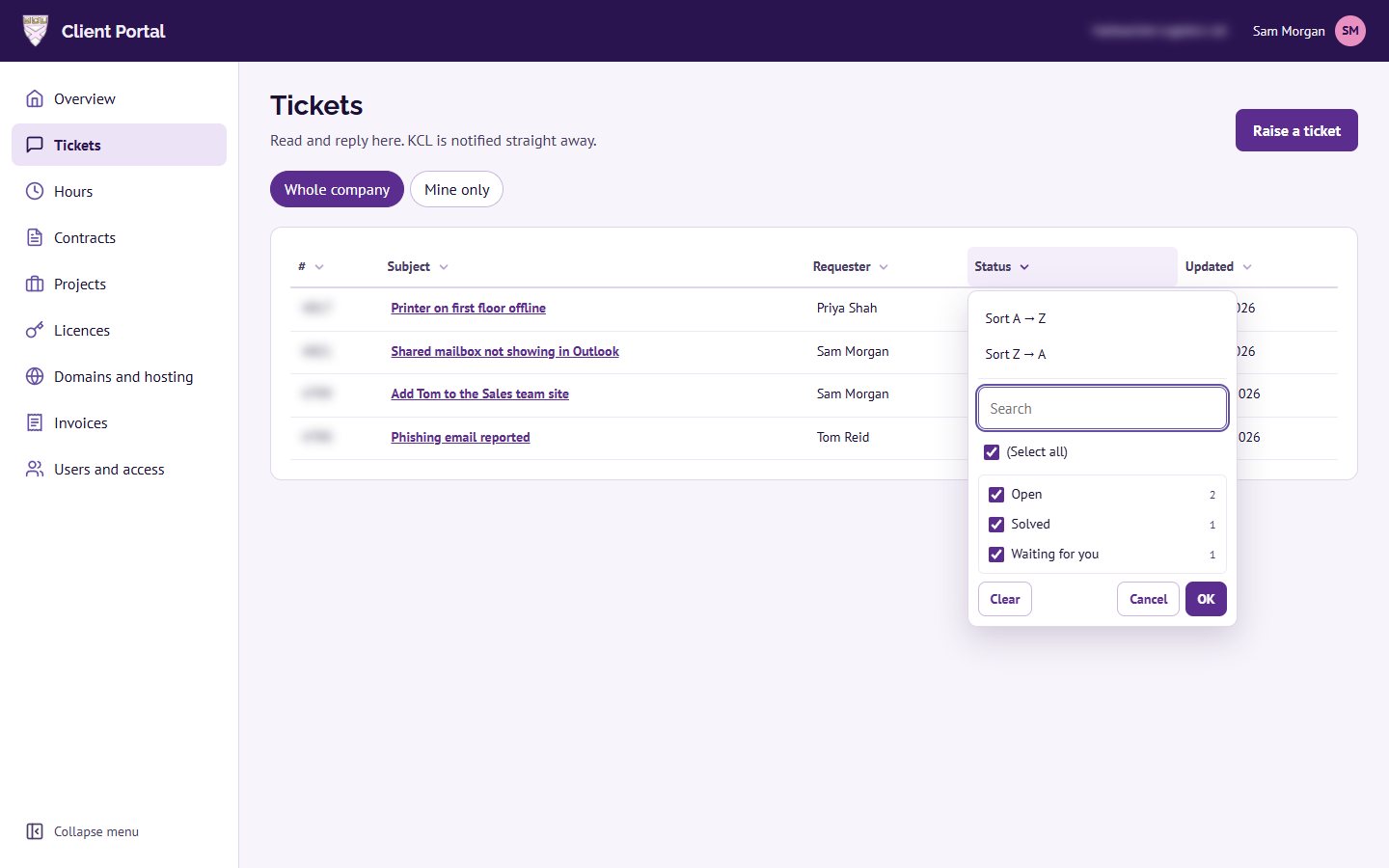
Every list – tickets, entries, licences, invoices and the rest – can be sorted and filtered like a spreadsheet. Choose the small arrow beside a column heading to:
- Sort A → Z or Z → A (dates and numbers sort properly);
- Search the values in that column;
- tick just the values you want to see, then choose OK.
Above the list you’ll see “Showing x of y”; Clear filters shows everything again. Totals follow your filters.
On a phone
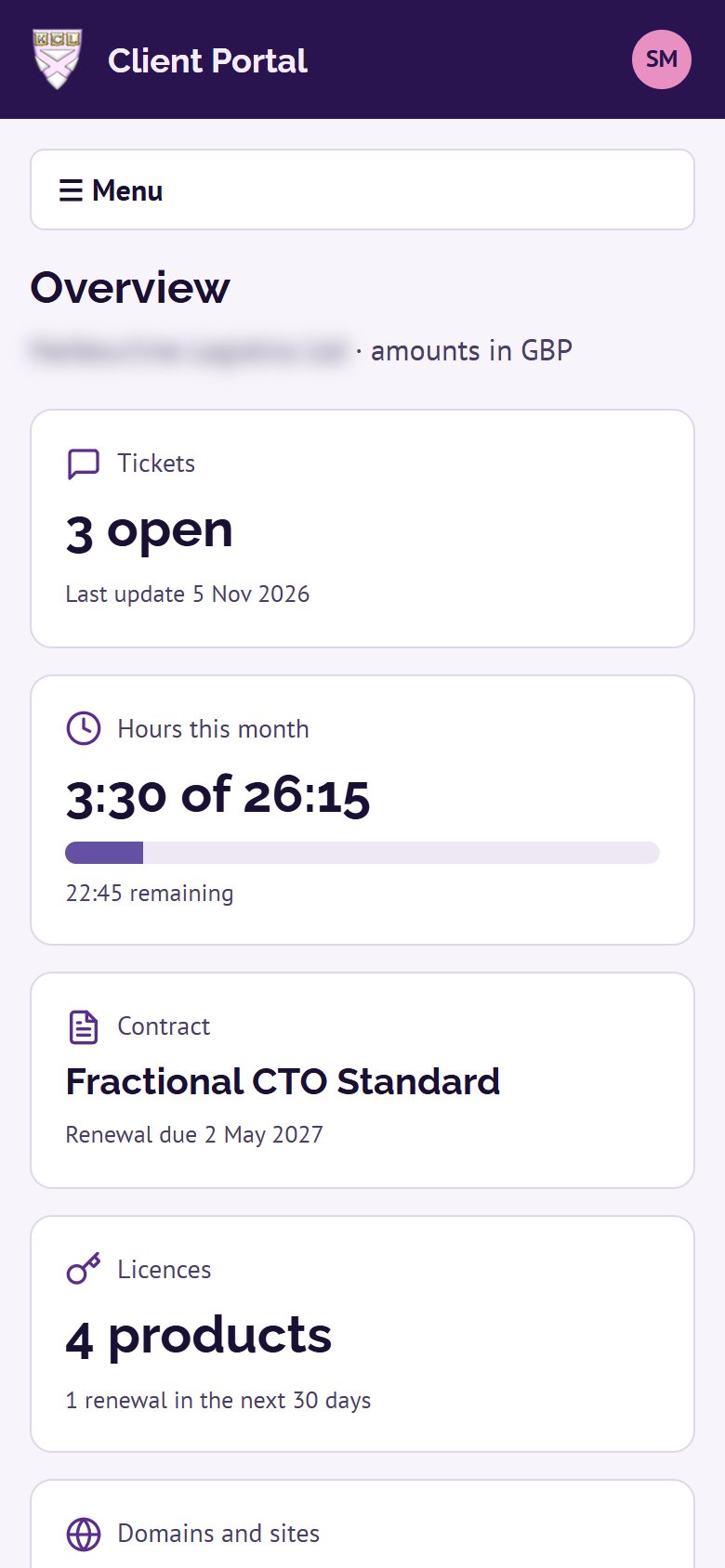
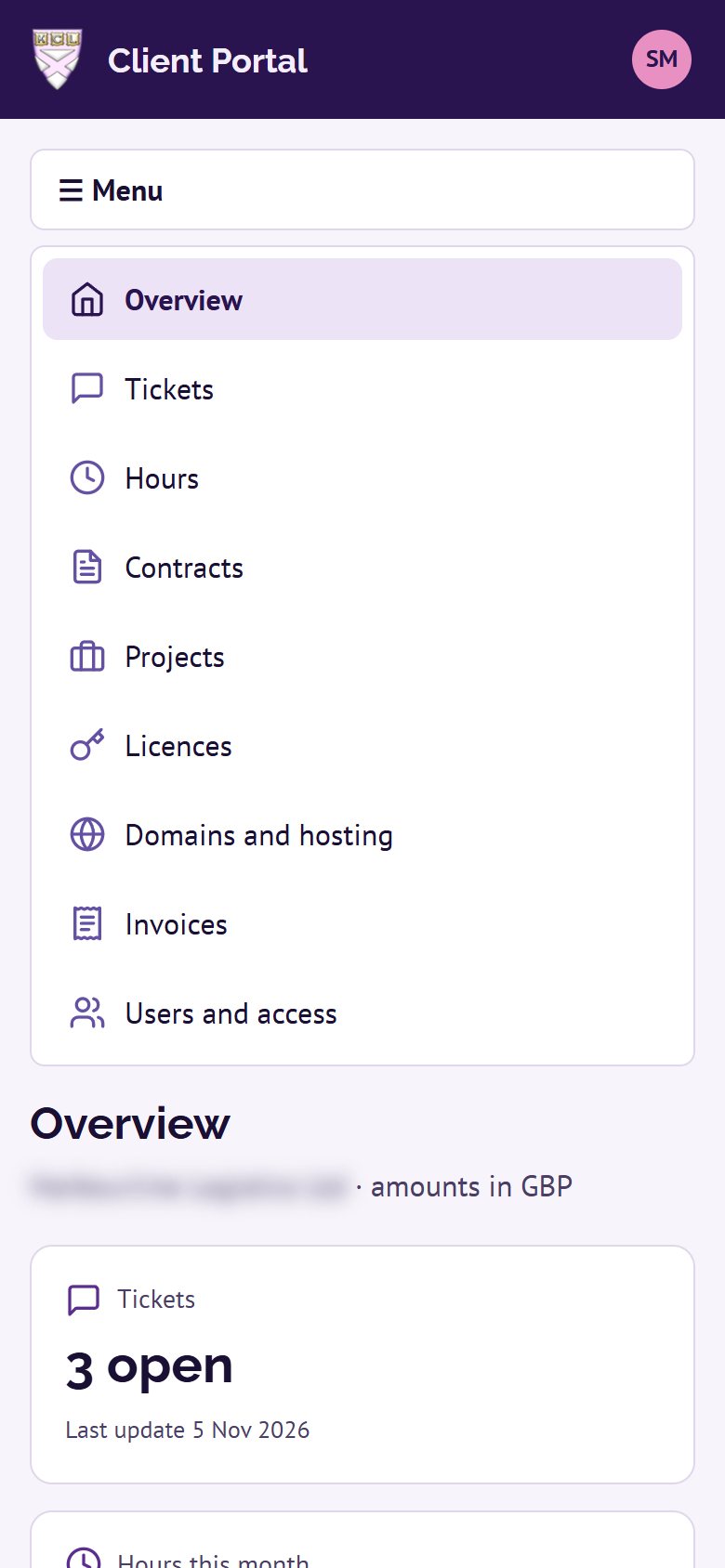
On a phone, choose ☰ Menu to open the menu, and your initials at the top right for your account. Lists turn into cards, one per row, and the column buttons appear above them for sorting and filtering.
SECTION 05
Tickets
Your tickets
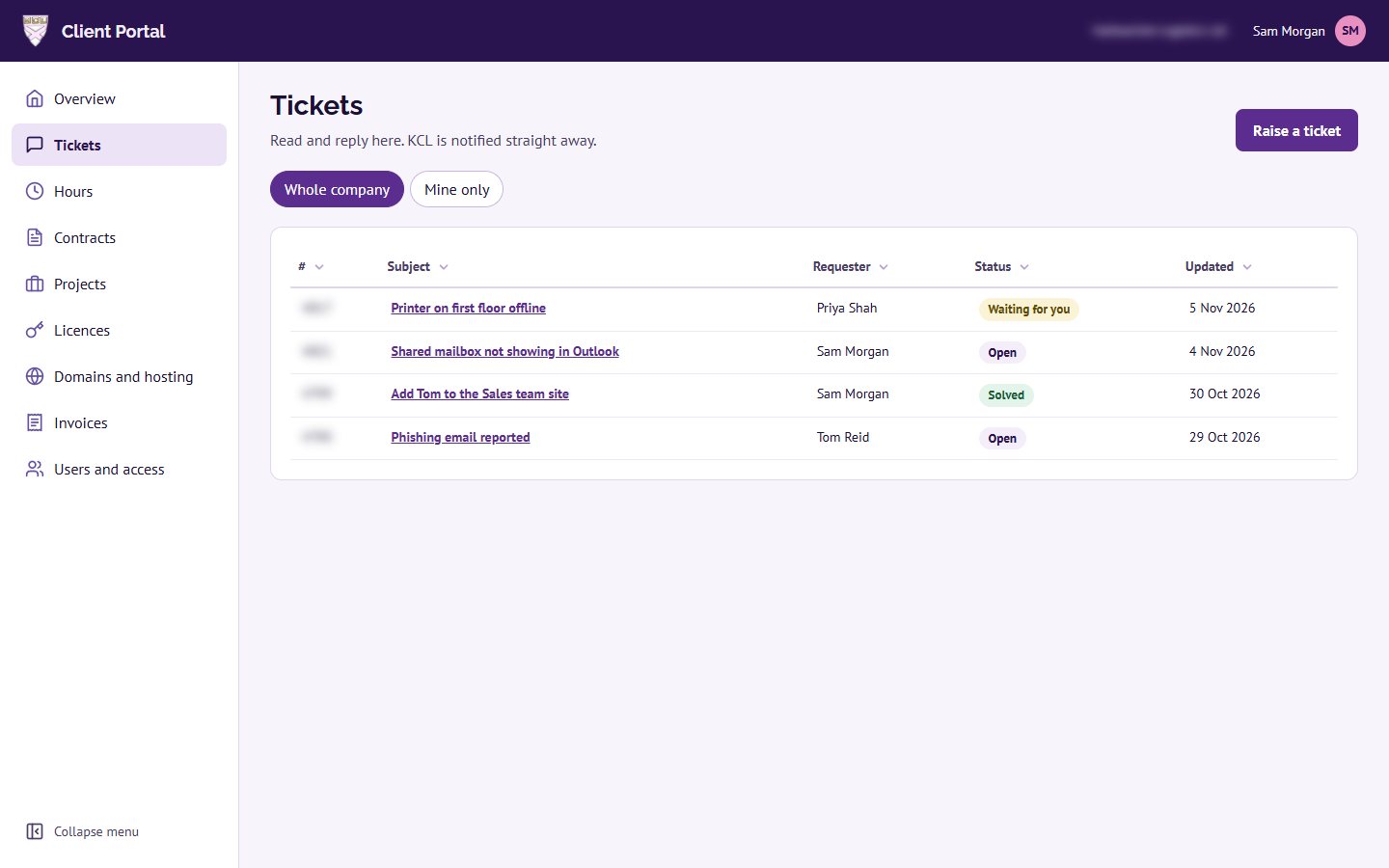
Tickets lists your company’s support tickets with their number, subject, who raised them, status and when they last changed. Choose a subject to open it.
- Whole company or Mine only – switch between everyone’s tickets and the ones you raised. (Your portal manager decides whether you can see the whole company’s tickets.)
- Waiting for you means KCL needs something from you – usually an answer to a question.
- Solved tickets stay in the list, so you can look back at them.
Reading and replying
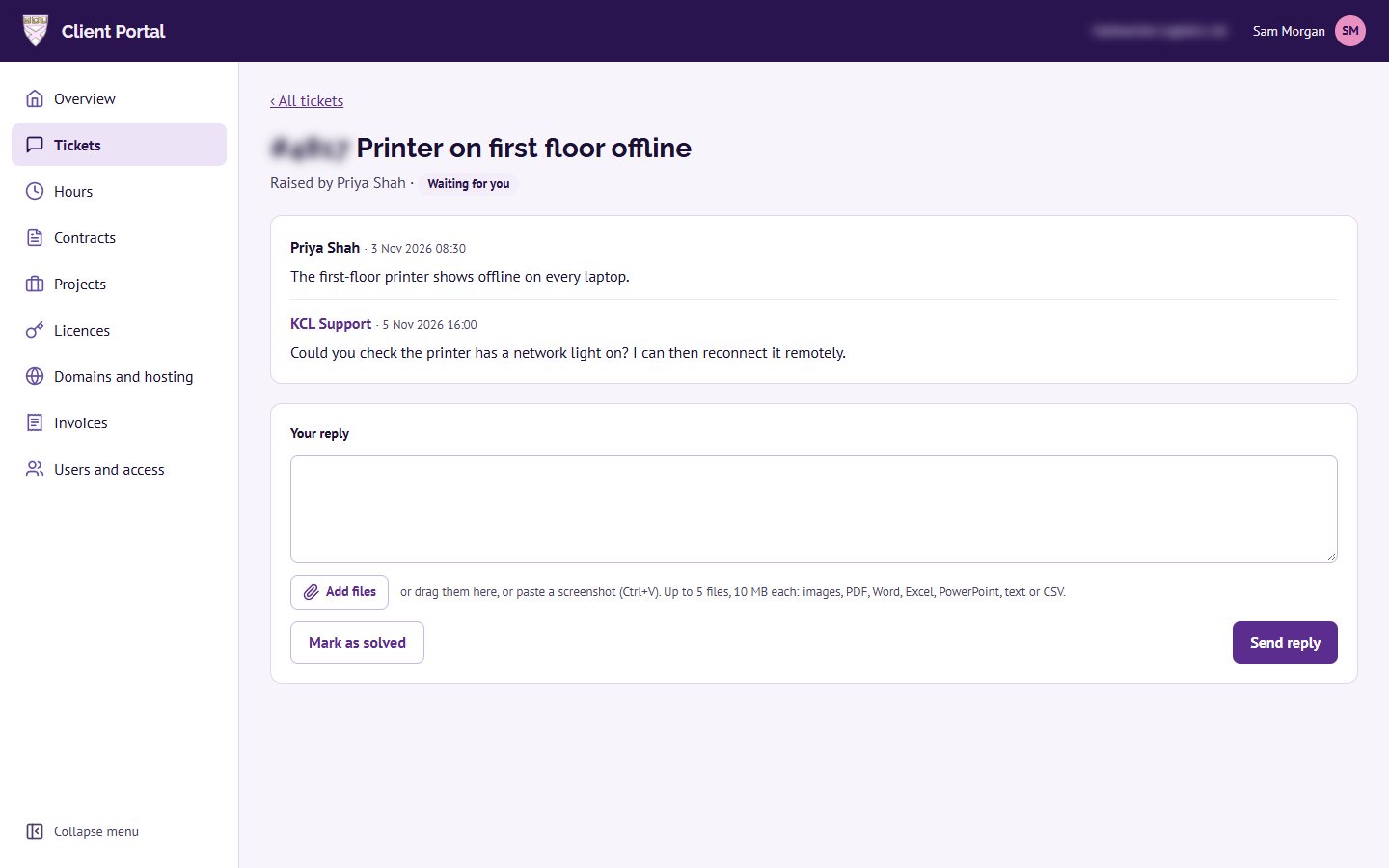
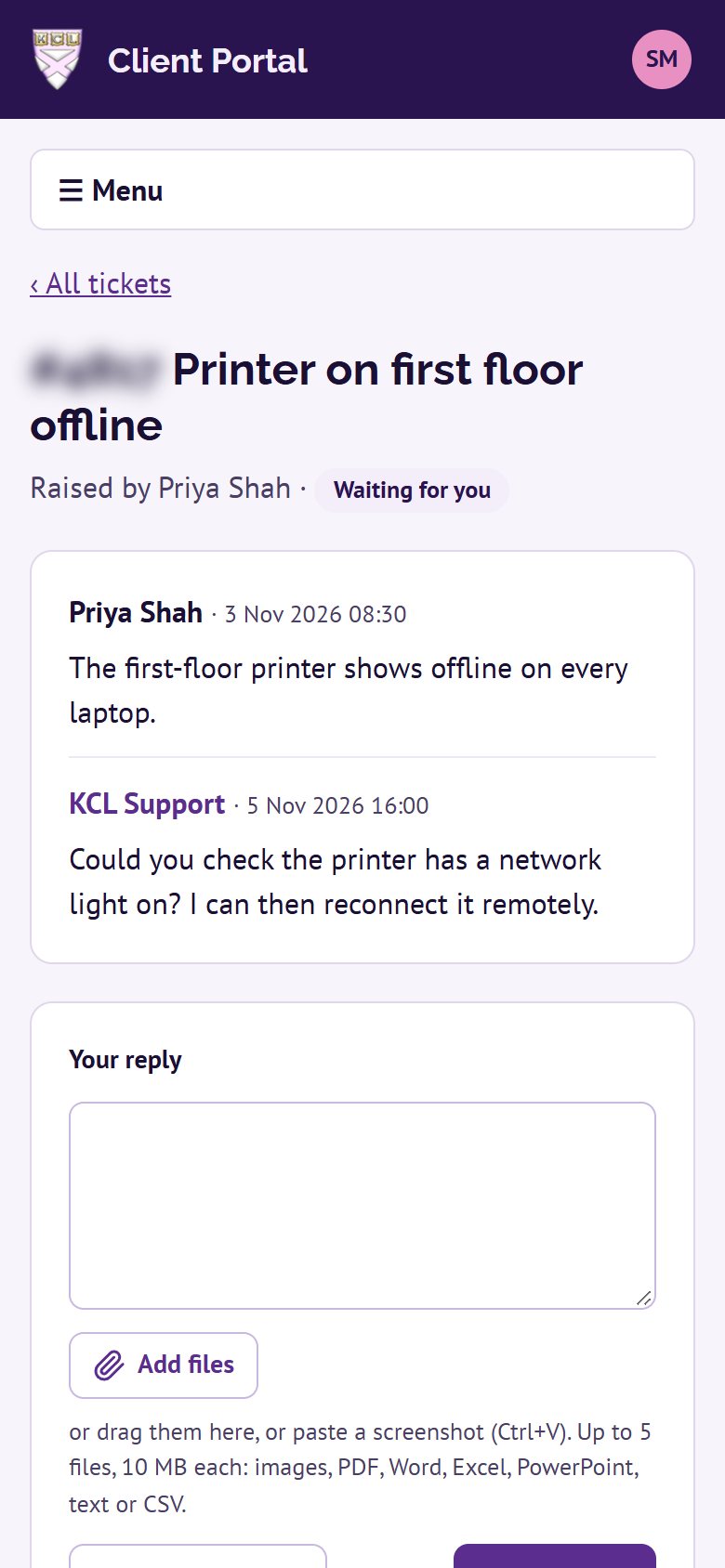
A ticket shows the whole conversation, oldest first, including any pictures and files. Type in Your reply and choose Send reply.
- Your reply shows Sending… for a moment, then Sent once KCL has it. The page updates by itself.
- Mark as solved closes the ticket when you’re happy. Replying to a solved ticket opens it again.
Adding files and screenshots
Choose Add files, drag files onto the reply box, or paste a screenshot straight in with Ctrl+V (⌘V on a Mac). You can add up to 5 files of up to 10 MB each: pictures, PDFs, Word, Excel and PowerPoint files, text and CSV files.
Tip: To take a screenshot on Windows, press Windows + Shift + S, choose the area, then paste it into the reply. On a Mac, ⌘ + Ctrl + Shift + 4 copies an area to paste.
Raising a ticket
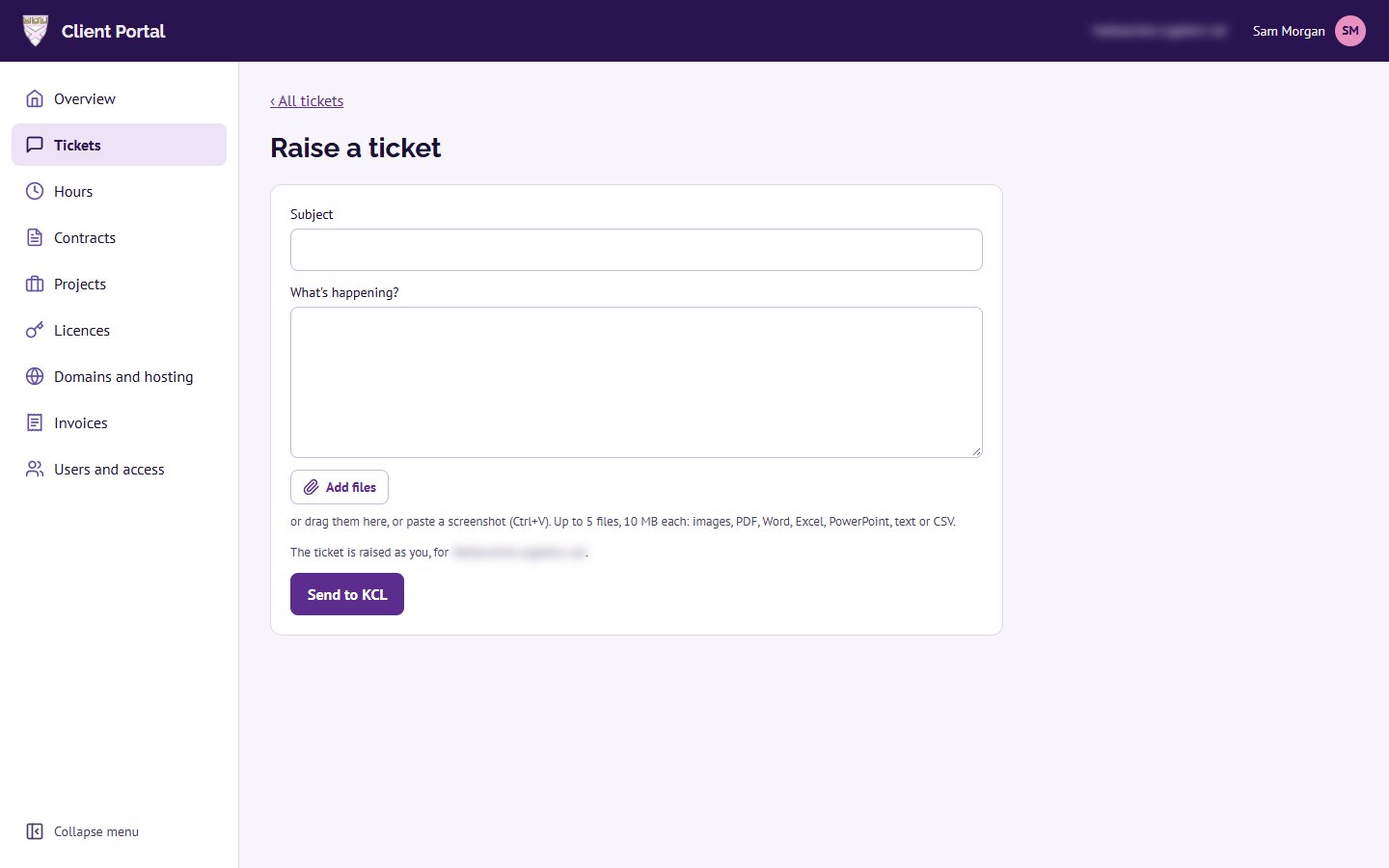
Choose Raise a ticket on the Tickets page. Give it a short subject, describe what’s happening – what you were doing, what you expected and any error message – add files if they help, and choose Send to KCL.
The ticket is raised in your name, for the company you’re looking at.
On a phone
Tickets work the same way on a phone. Add photos from your camera roll with Add files.
SECTION 06
Hours
This month at a glance
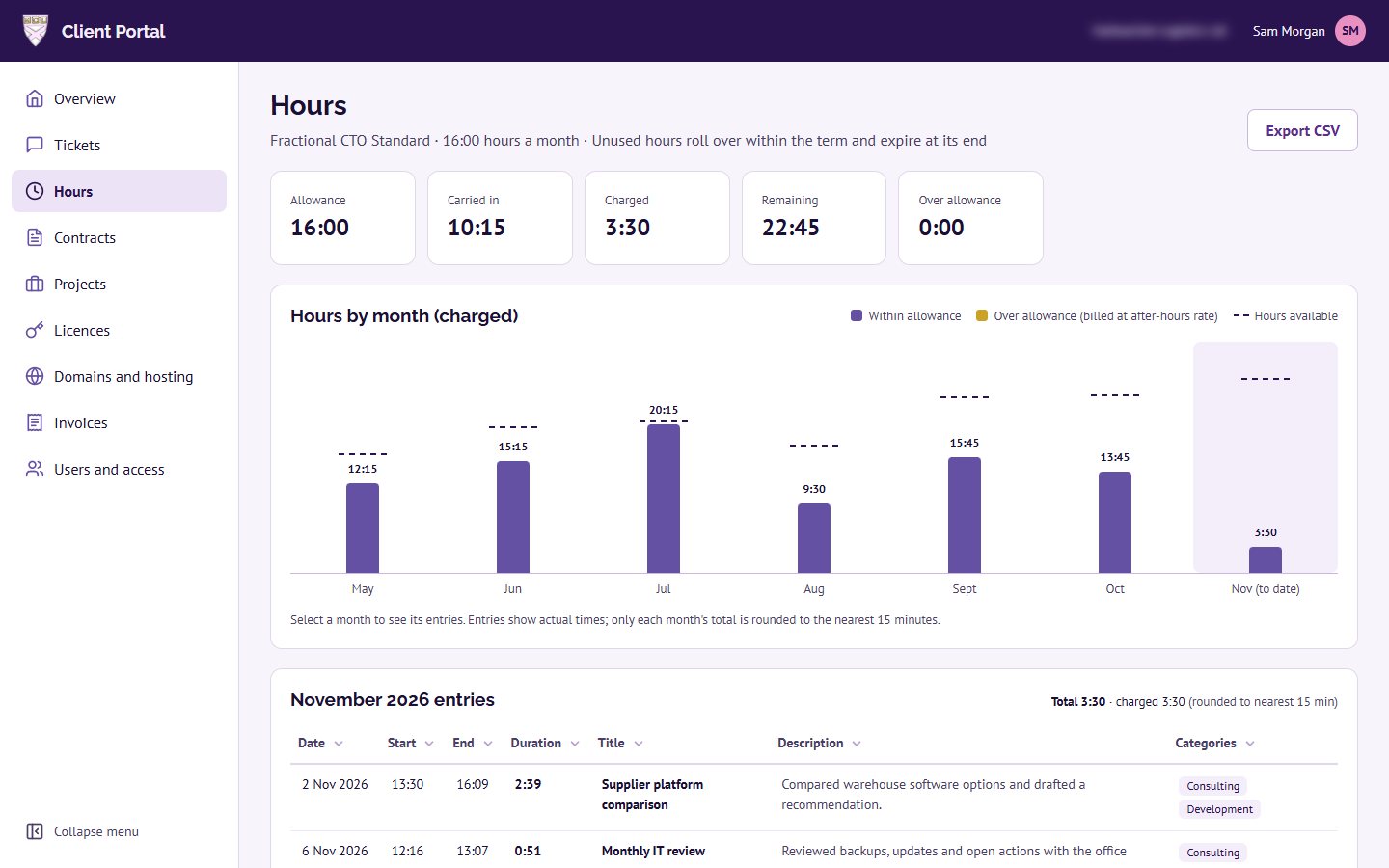
If your contract includes hours, the top of the page shows the month you’ve chosen:
- Allowance – the hours your contract includes each month.
- Carried in – unused hours brought forward, if your contract allows it.
- Charged – hours used this month.
- Remaining – what’s left to use.
- Over allowance – hours beyond what was available, charged at your contract’s after-hours rate.
The line under the page title explains your contract’s rule for unused hours – for example that they roll over within the term and expire at its end, or that they don’t roll over.
The monthly chart
Each column is a month: purple for hours within your allowance, gold for hours over it, and a dashed line for the hours that were available. Choose a month to see its entries below.
Every entry
Each entry shows the date, start and end time, how long it took, a title, a description of what was done and its categories. Entries show the exact times worked; only each month’s total is rounded, to the nearest 15 minutes.
Export CSV downloads the month’s entries to open in Excel.
SECTION 07
Contracts
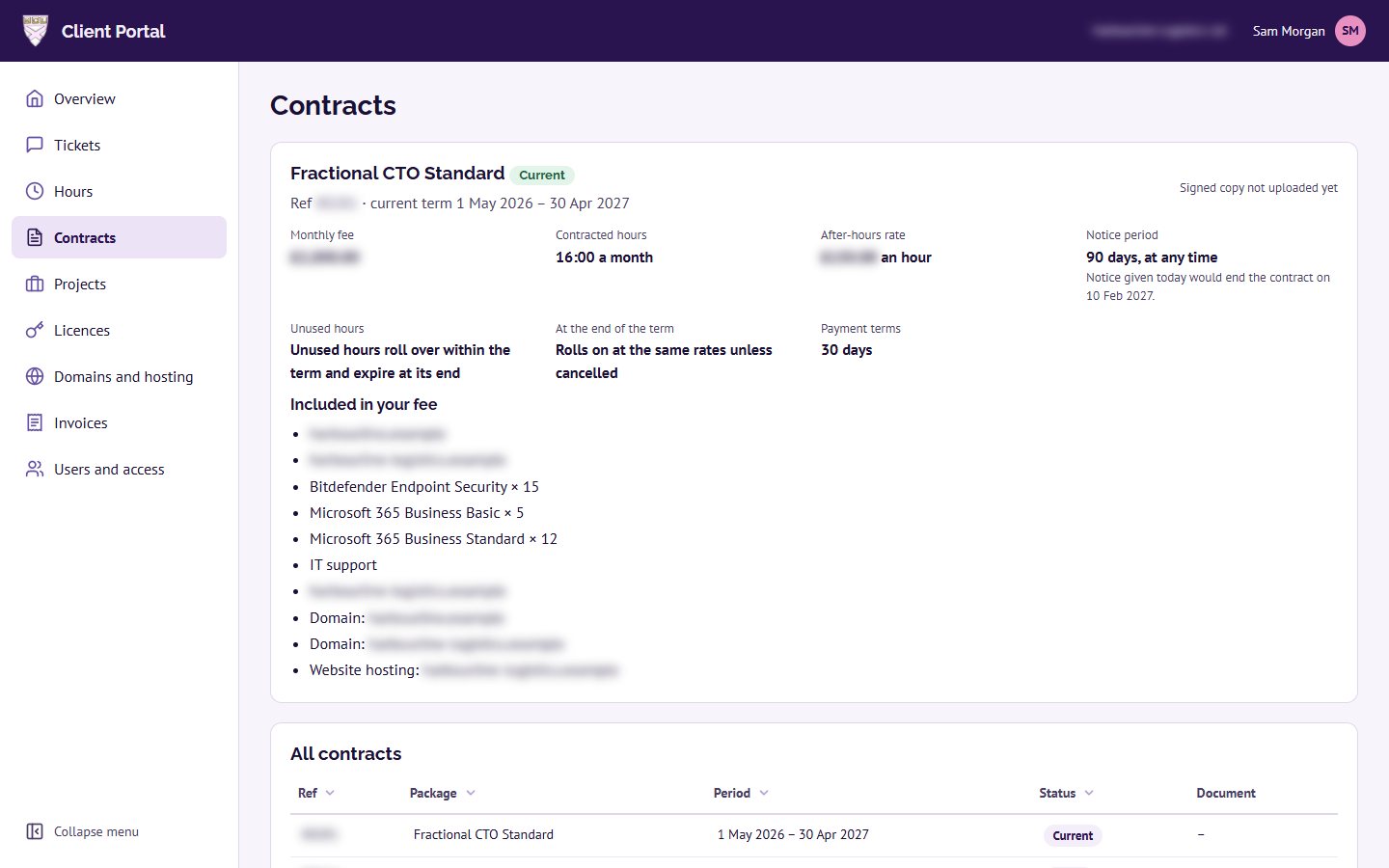
Contracts shows your current contract at the top:
- its reference and the current term’s dates;
- the monthly fee, contracted hours and the after-hours rate for hours beyond them;
- the notice period, what happens to unused hours, what happens at the end of the term, and your payment terms;
- Included in your fee – the licences, support, domains and website hosting your fee covers.
Choose Signed contract (PDF) to open the signed copy. All contracts lists every contract you’ve had with KCL, with its period, status and signed PDF.
Tip: The Overview tile shows when your contract is due for renewal. We’ll be in touch before then to talk it through.
SECTION 08
Projects
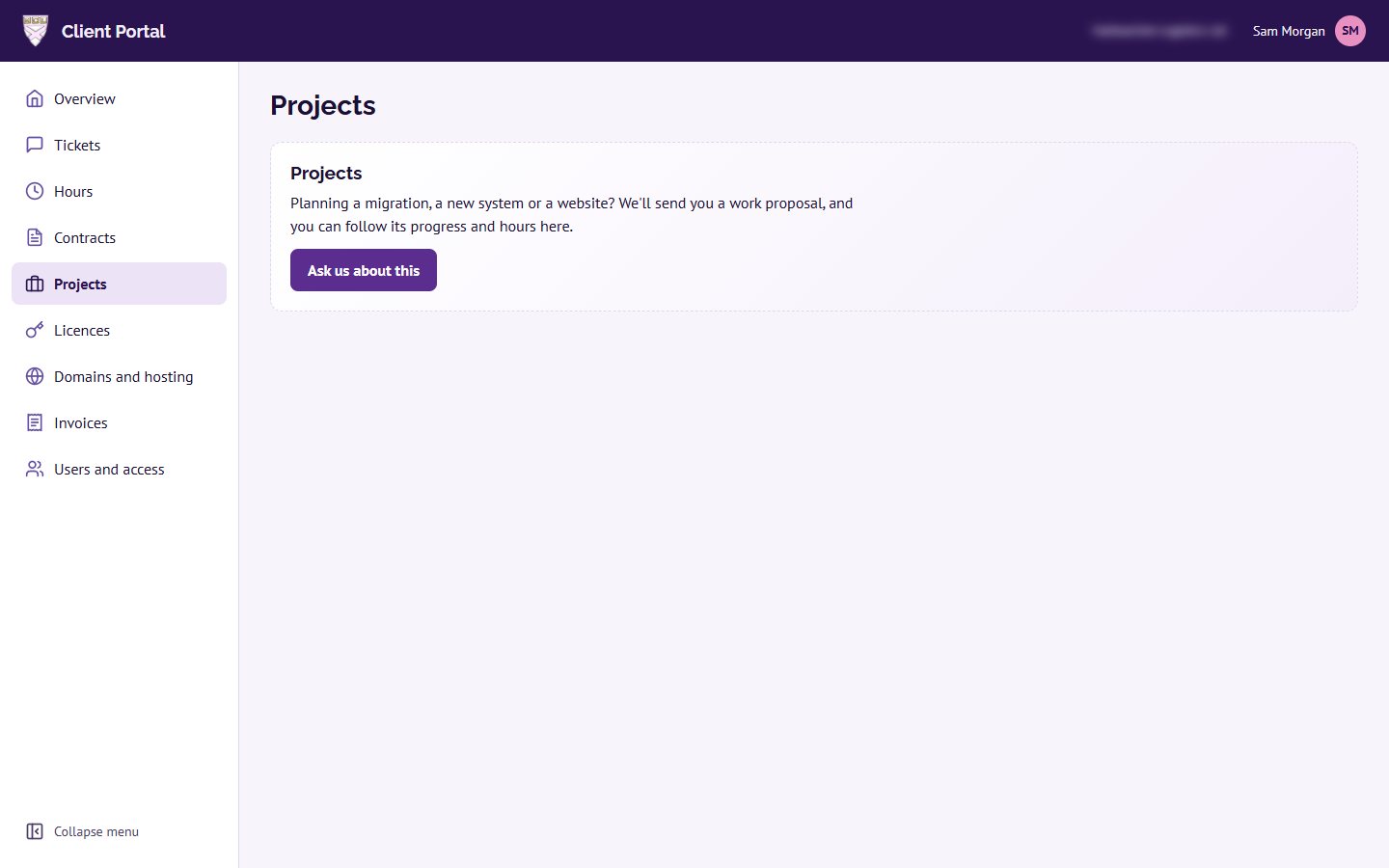
Projects lists work proposals KCL has sent you – a migration, a new system or a website, say – with their status and the hours spent on each.
Until you have a project, the page explains what KCL can do. Choose Ask us about this to raise a ticket with the question already filled in.
SECTION 09
Licences
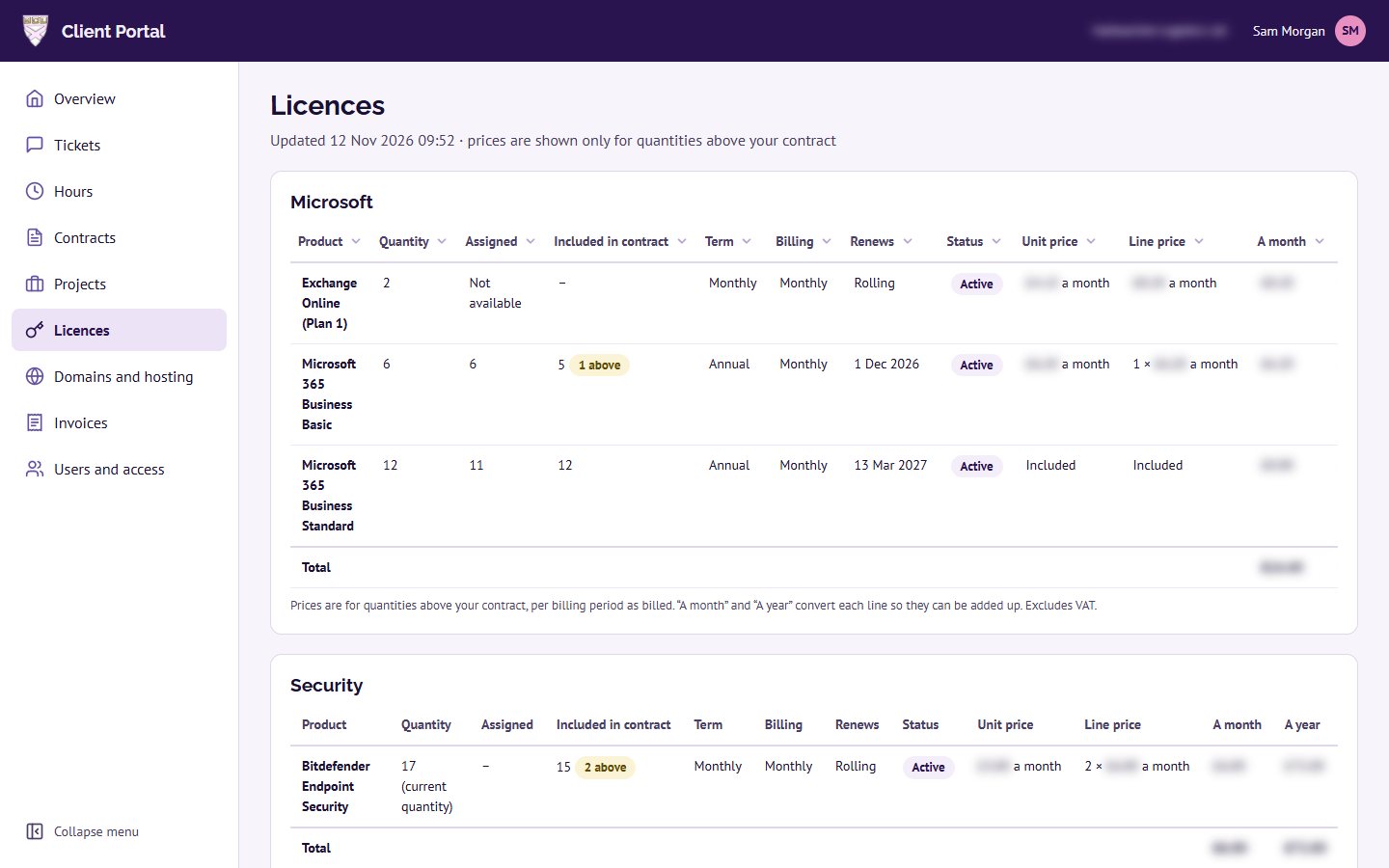
Licences lists your Microsoft 365, security and other software licences, grouped by type and refreshed from our suppliers (the date at the top says when). For each product:
- Quantity – how many licences you have; Assigned – how many are given to people (“Not available” when the supplier doesn’t report it).
- Included in contract – how many your contract covers. A badge such as 1 above shows how many you have beyond it.
- Term and Billing – how long the commitment is and how often it’s billed; Renews – the next renewal date.
- Unit price and Line price – shown only for quantities above your contract; included licences say Included.
- A month and A year – each line converted so it can be added up, with totals at the bottom. Prices exclude VAT.
Tip: Need more or fewer licences, or someone has left? Raise a ticket and we’ll sort it – some licences can only be reduced at renewal.
SECTION 10
Domains and hosting
Domains
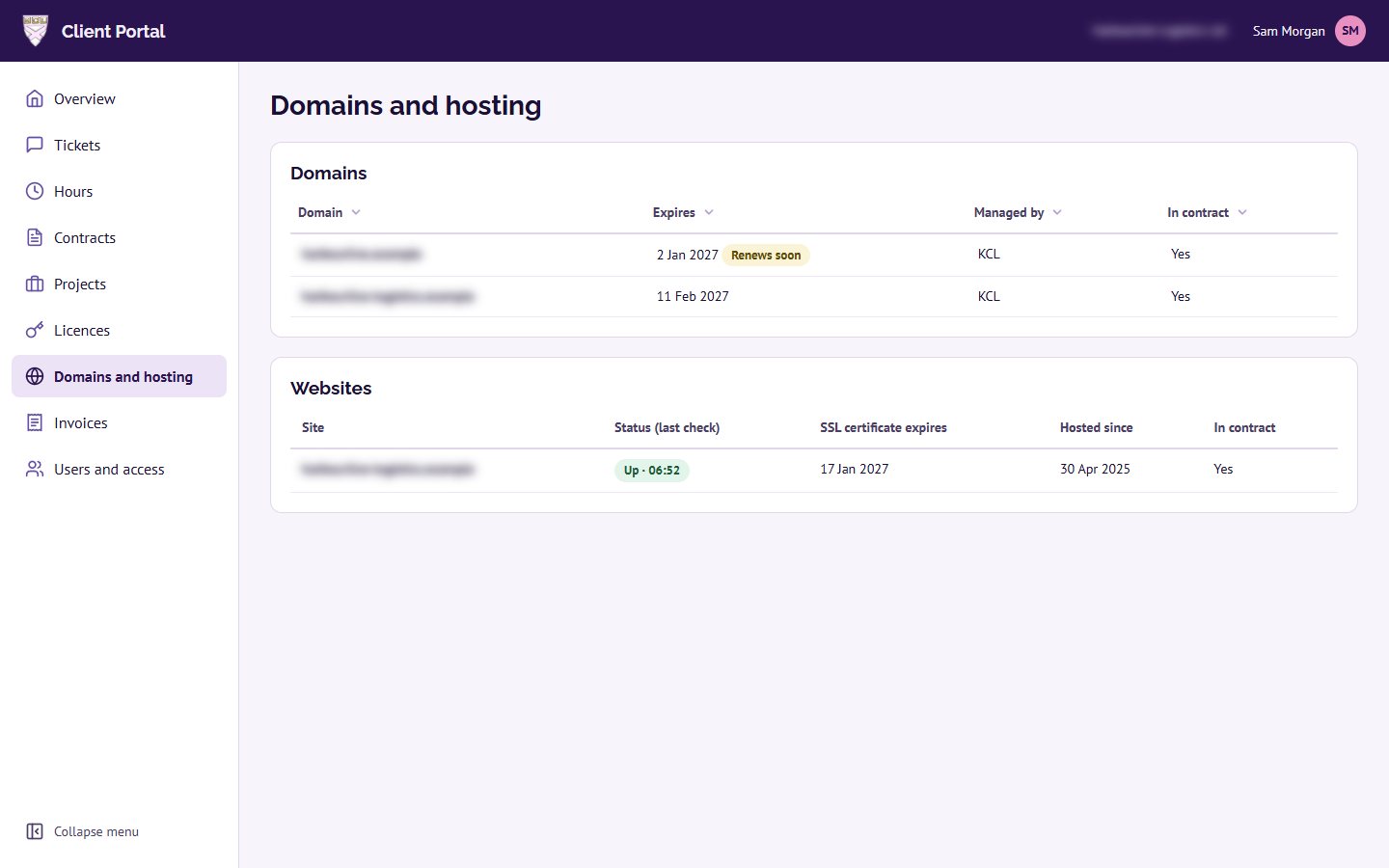
Your domain names, with their expiry date (checked automatically), who manages them and whether they’re in your contract. Renews soon marks a domain close to its expiry date.
Managed by KCL means we renew it for you. If it shows You, the domain is with your own registrar, so keep an eye on its renewal – or ask us to look after it.
Websites
Websites KCL hosts for you, with their status at the last check (we check every 30 minutes), when their security (SSL) certificate expires, and when we started hosting them.
SECTION 11
Invoices
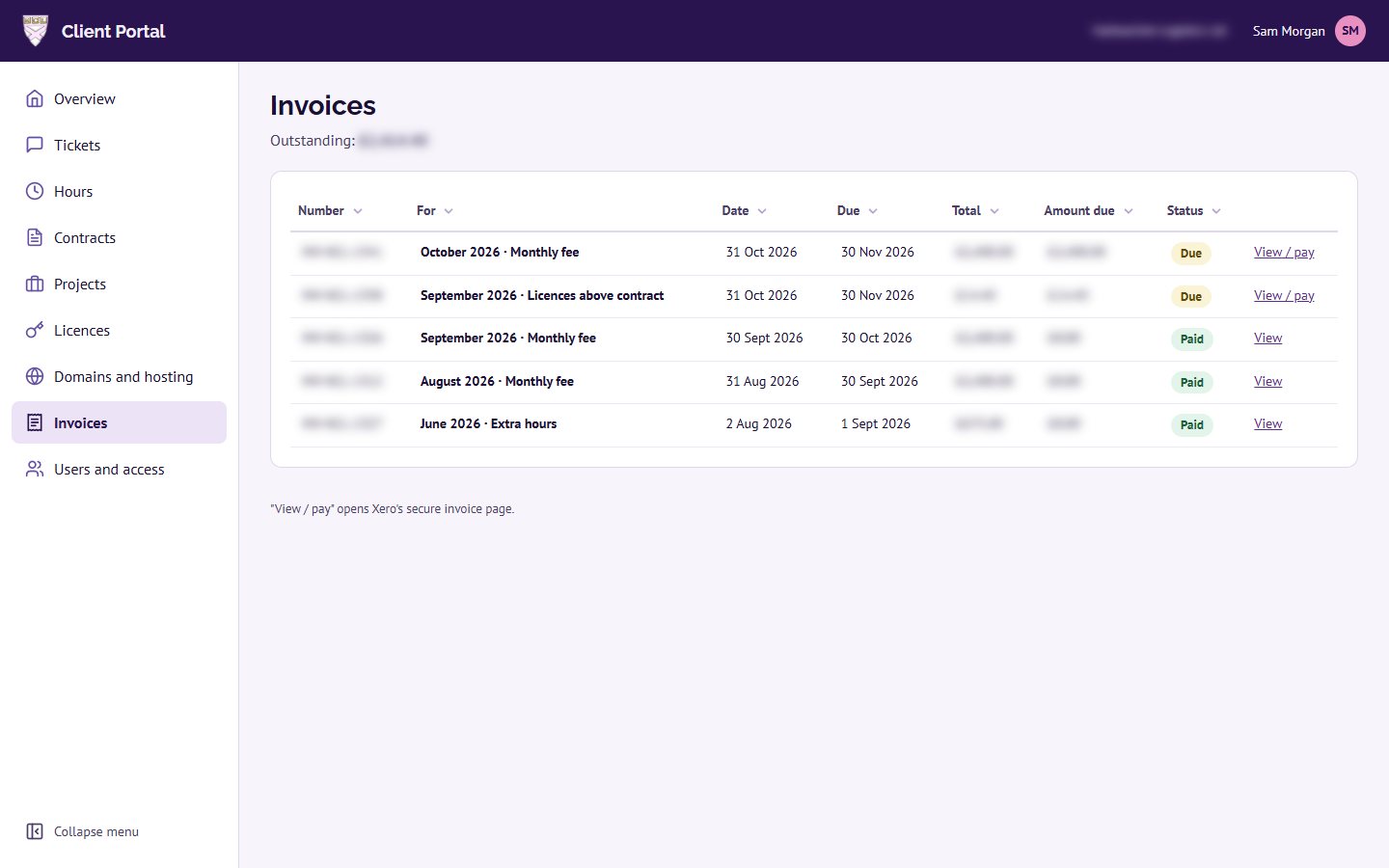
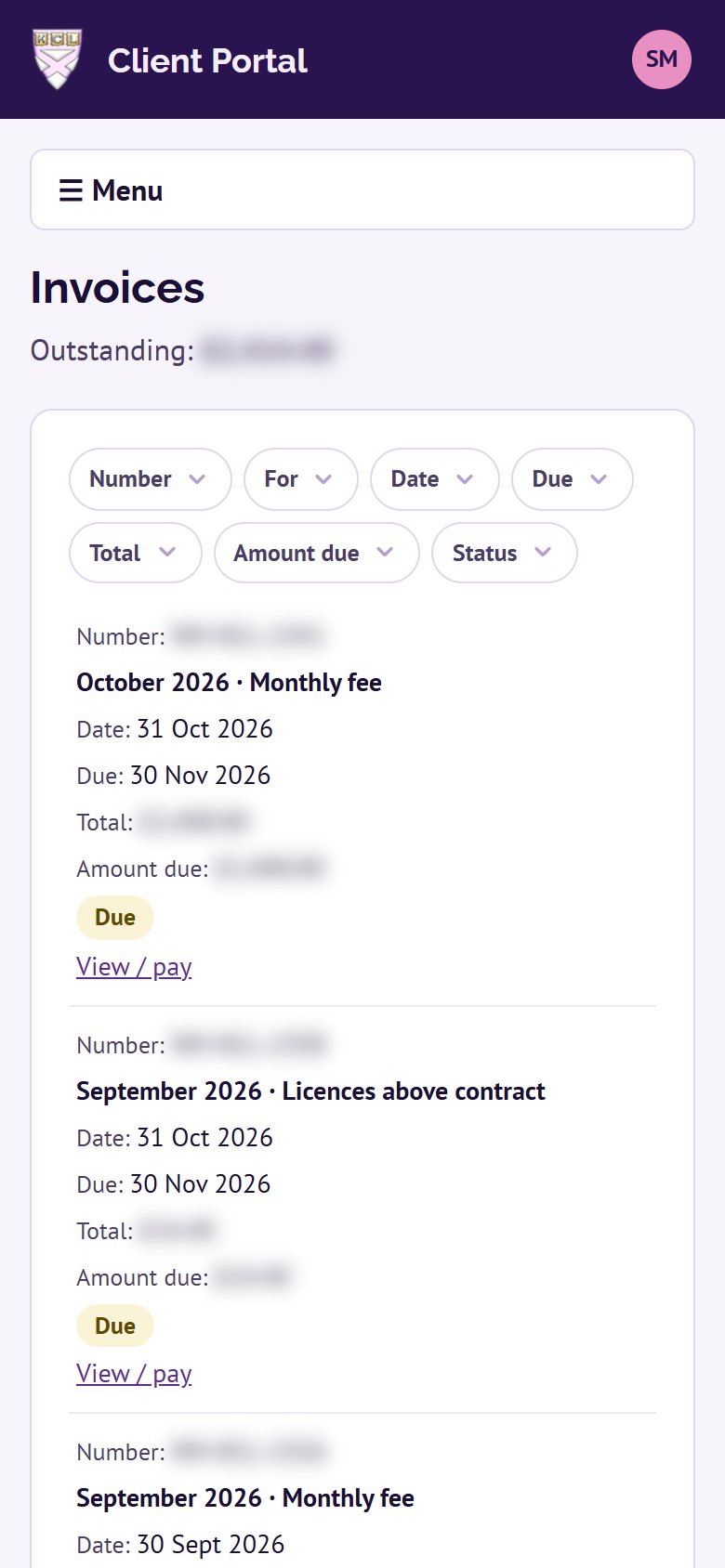
Invoices shows the total outstanding and every invoice, newest first, with:
- For – the month and what it covers (a monthly fee, licences above the contract, extra hours) or the project;
- its date, due date, total and amount due;
- its status: Due, Overdue or Paid.
Choose View / pay to open the invoice on Xero’s secure page, where you can view it, download a PDF or pay it.
On a phone
Each invoice becomes a card, with the same View / pay link.
SECTION 12
Users and access
This section is for portal managers – the people at your company who look after who can use the portal. If you’re not one, you won’t see Users and access in your menu.
Your colleagues
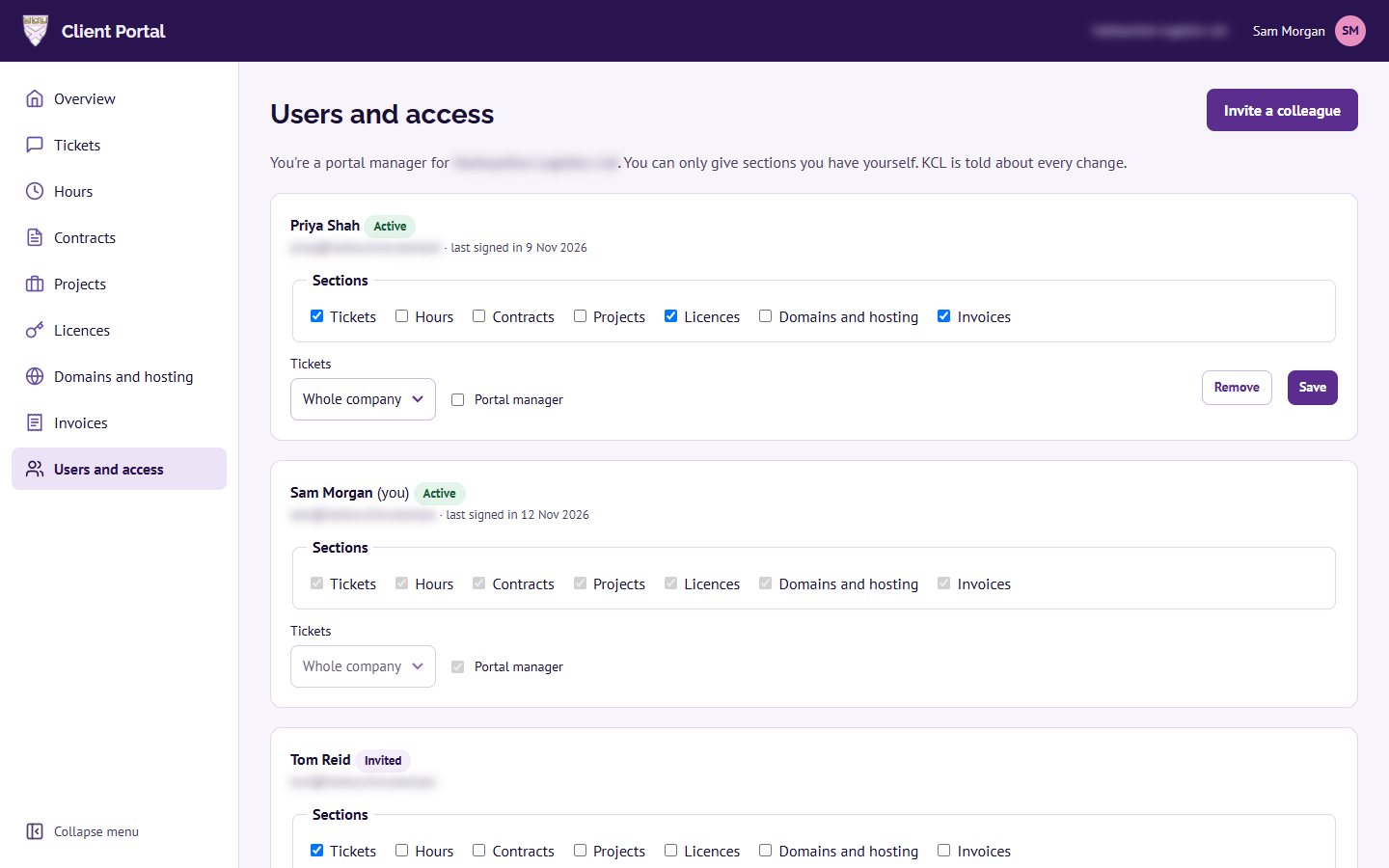
Each colleague is listed with their email address and when they last signed in (or Invited if they haven’t yet). For each one you can choose:
- Sections – which parts of the portal they can see;
- Tickets – the whole company’s tickets, or only their own;
- Portal manager – whether they can manage colleagues too.
Choose Save after making changes. Remove ends their access to your company straight away.
Inviting a colleague
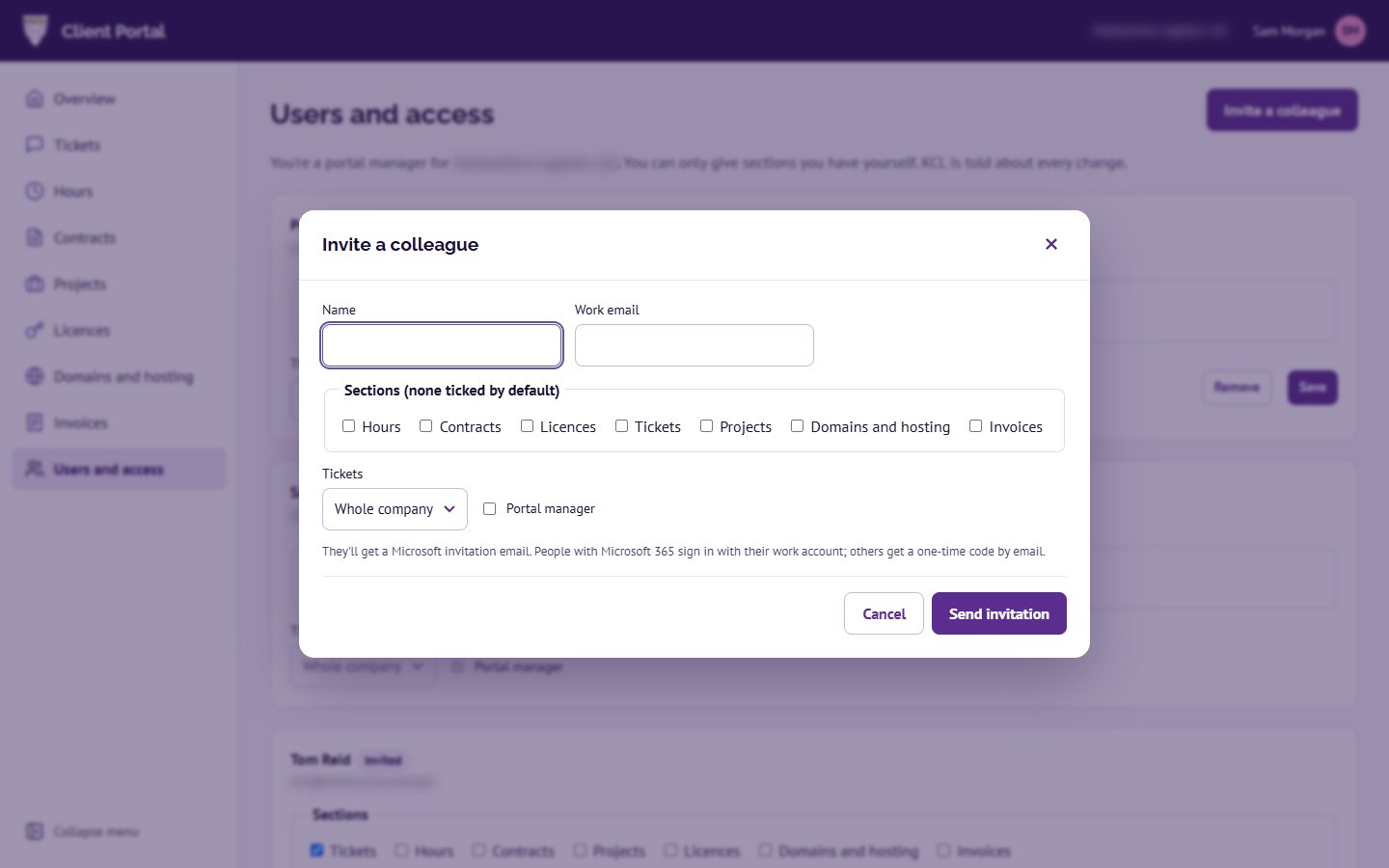
- Choose Invite a colleague.
- Enter their name and work email.
- Tick the sections they need – none are ticked to start with.
- Choose what they see in Tickets, and whether they’re a portal manager.
- Choose Send invitation. They get the Microsoft invitation email described in Signing in.
You can only give sections you have yourself, and only for your own company. KCL is told about every change.
SECTION 13
If something isn’t right
I haven’t received my invitation
Check your junk or spam folder for an email from Microsoft on behalf of Kirkpatrick Consult Limited. If it isn’t there, ask your portal manager or KCL to check the email address and send it again.
I signed in but can’t get into the portal
You may have signed in with a different Microsoft account – for example a personal one. Sign out, go to portal.kcl.cloud again and choose the account your invitation was sent to.
My one-time code hasn’t arrived
Codes can take a minute or two. Check your junk folder, and make sure you typed the email address the invitation was sent to. You can ask for a new code on the same page.
I can’t see a section I need
Your portal manager chooses which sections each person sees. Ask them to switch it on in Users and access.
My reply says “Not sent”
The reply couldn’t be delivered after several tries, and KCL has been alerted. Please send it again, or email us.
The figures look out of date
Reload the page. Licences and invoices are refreshed when you open them, so a reload a minute later shows the latest.
A licence shows “Not available” under Assigned
Some licence types don’t report how many are assigned to people. The quantity you have is still correct.
SECTION 14
Help and support
The quickest way to get help is to raise a ticket in the portal – it reaches the KCL team straight away and you can follow it there.
If you can’t sign in, email support@kcl.cloud and we’ll help you get access.